Every color in Smart Image can either be fixed or driven by a Smart Message. A fixed color is the same on every post. A dynamic color is recomputed for each post, so a politics article and a sports article can come out in different colors from a single template.
1. Which fields accept a dynamic color#
Six fields do: Overlay color, Text color, Text shadow color, Highlight, Underline and Decoration. Each one is configured independently, so you can drive the overlay from your section colors while keeping the text white.
The option only appears if your brand has at least one Smart Message template. If you have none, the field stays a plain color picker.
2. Write a Smart Message that returns a color#
Open the burger menu, go to Brands, select your brand, then the Smart message templates section and create a template. The variables you can test, such as the normalized categories in organic.category, are listed in Which Twig variables are available in Nonli?.
The rule must output a hex color and nothing else. No surrounding text, no line break, no trailing space. Use the {%- ... -%} and {{- ... -}} forms so Twig trims the whitespace for you.
Here is a rule that gives each section its own color:
1{%- set categories = organic.category ?? [] -%}2{%- if 'politique' in categories -%}3{{- '#E50032' -}}4{%- elseif 'international' in categories -%}5{{- '#2377FA' -}}6{%- elseif 'rugby' in categories -%}7{{- '#16A34A' -}}8{%- elseif 'hippisme' in categories -%}9{{- '#9333EA' -}}10{%- elseif 'sports' in categories -%}11{{- '#F97316' -}}12{%- else -%}13{{- '#6F819D' -}}14{%- endif -%}The category names come from your own site taxonomy, so use the slugs your articles actually carry.
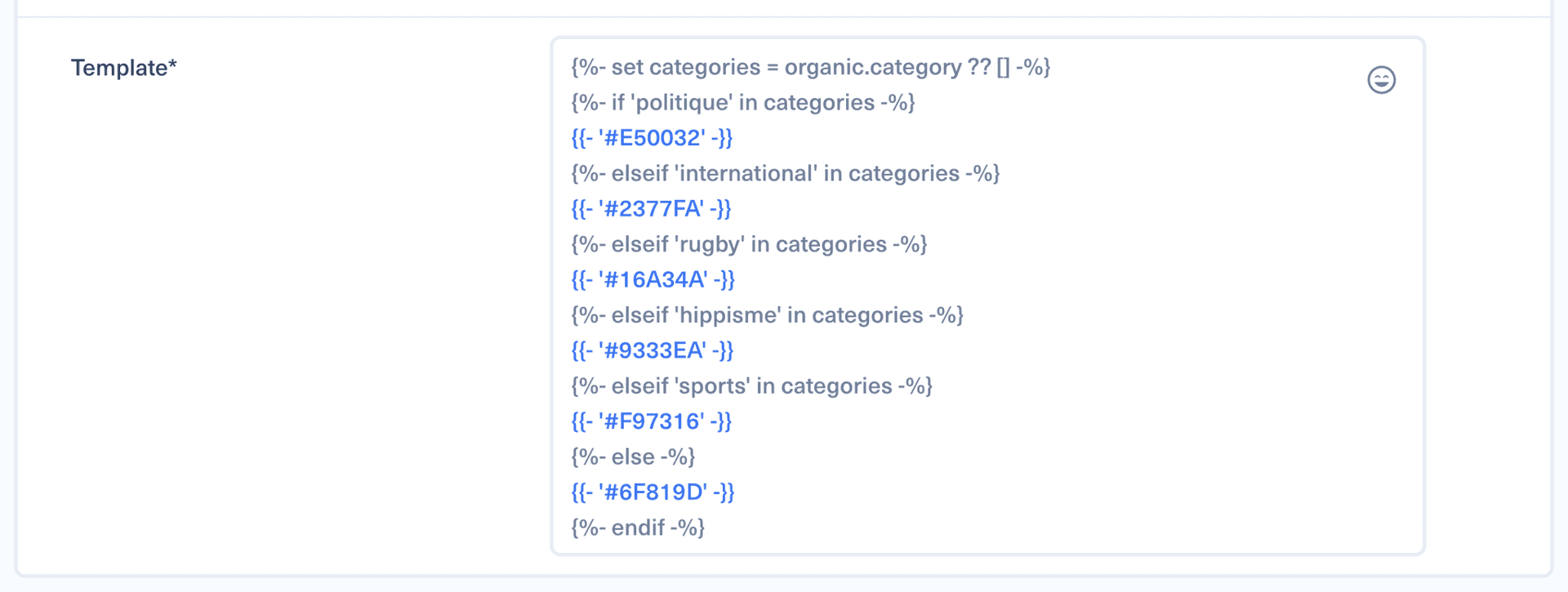
Always finish with an {%- else -%} branch. A rule that returns nothing for an uncategorized article would leave the field empty.
A naming convention helps: prefix these templates with [COLOR], for example [COLOR] Section color. The color rule dropdown lists every Smart Message of the brand, so a prefix makes the color ones easy to spot.
3. Switch the field to Dynamic#
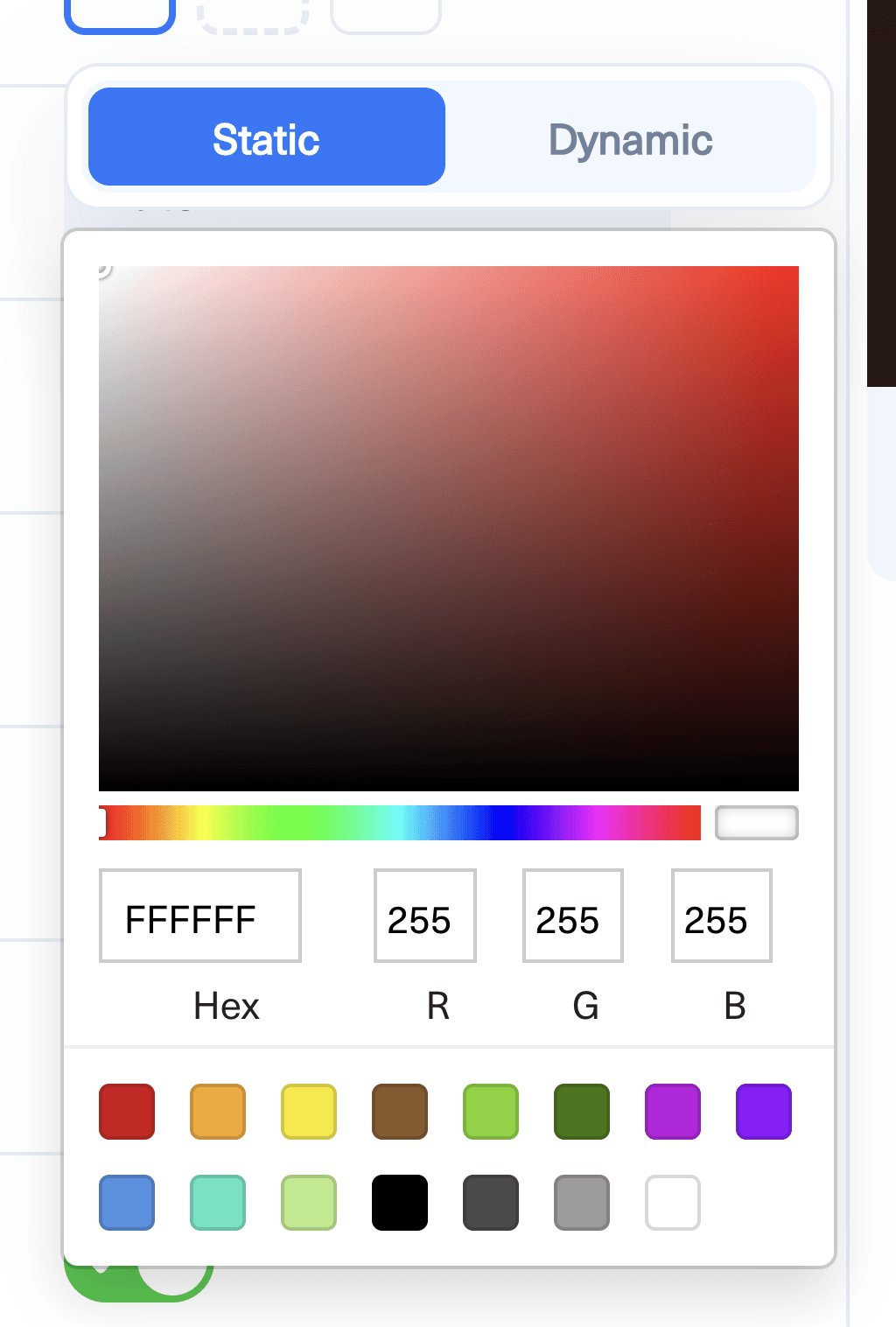
A color field starts as a plain swatch, with no visible mode switch.

Click the color swatch of the field you want to drive. The color popover opens with two tabs, Static and Dynamic. Click Dynamic.
The popover stays open and immediately shows the rule that was selected for you, so you can correct it right away.
4. Choose the rule and a fallback color#
Color rule is the Smart Message that returns the color. Fallback color is what Smart Image uses if the rule fails, returns nothing, or returns something that is not a valid hex color.
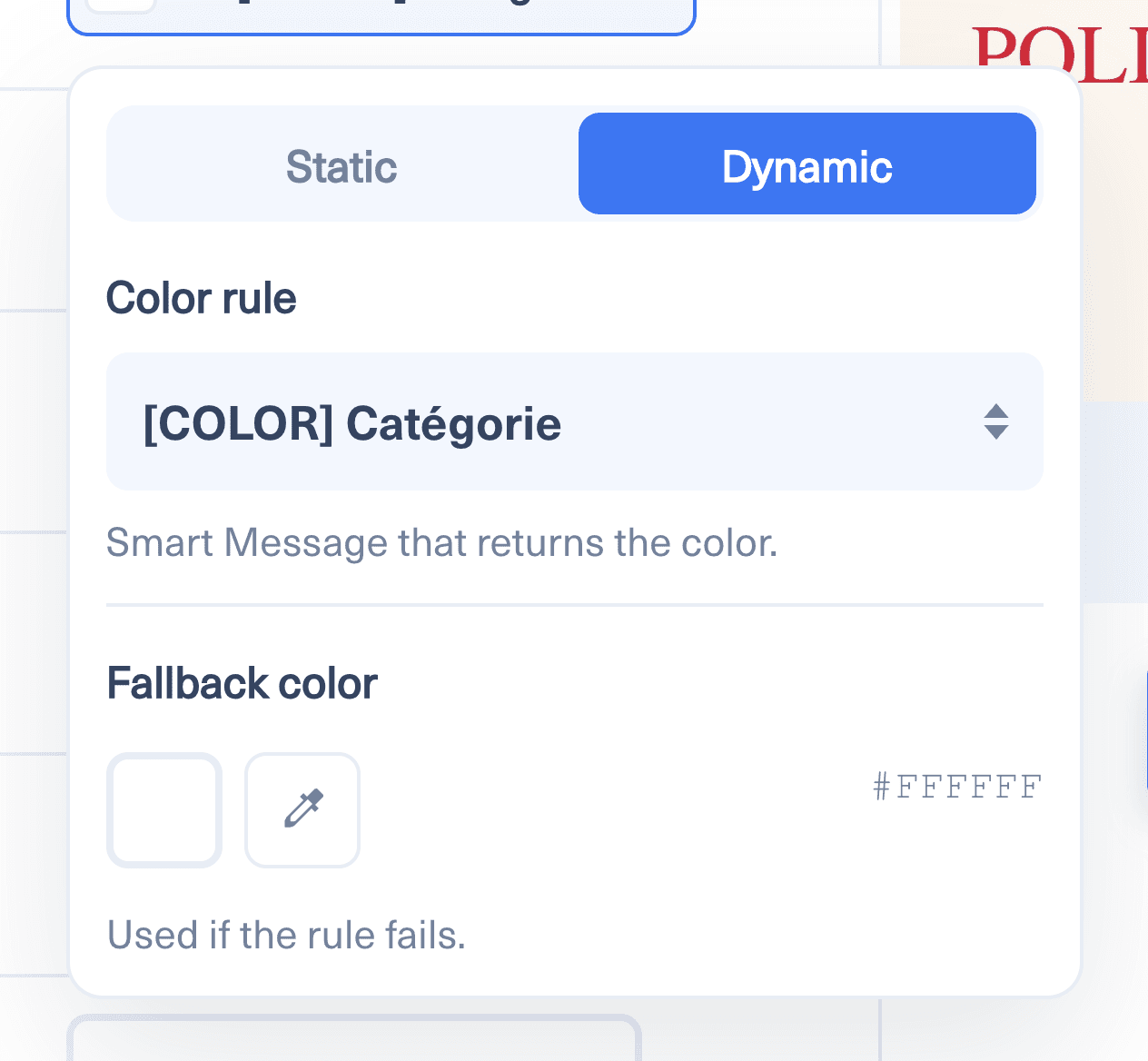
Pick a fallback that stays readable on its own. It is what your audience sees when an article has no category, so treat it as your neutral brand color rather than an afterthought.
Once configured, the form row shows the swatch, a {} marker and the rule name. That row is your at-a-glance signal that the field is dynamic rather than fixed.
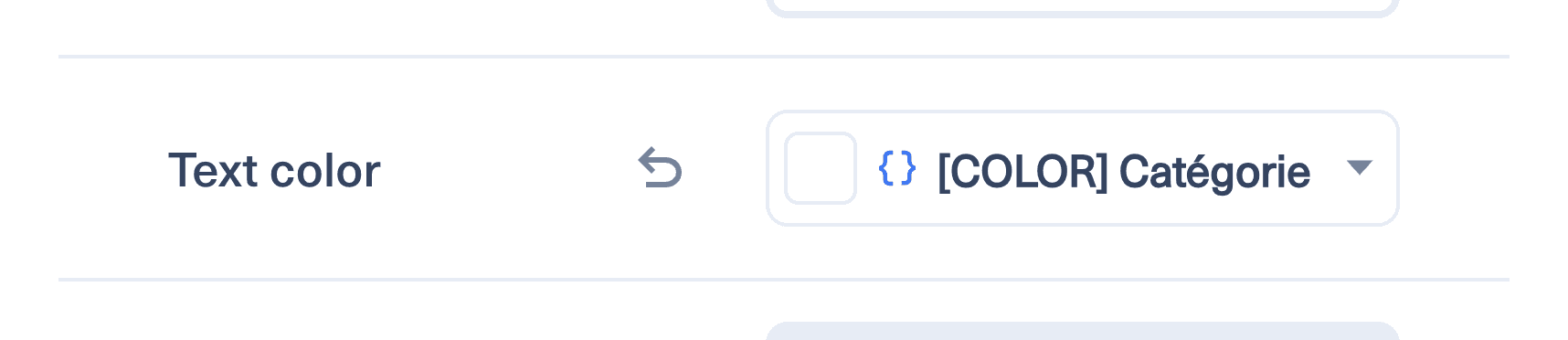
To go back to a fixed color, open the popover again and click Static. The fallback color becomes the new fixed color.
5. More rule examples#
One color per social network
1{%- if social_network == 'facebook' -%}2{{- '#1877F2' -}}3{%- elseif social_network == 'linkedin' -%}4{{- '#0A66C2' -}}5{%- elseif social_network == 'instagram' -%}6{{- '#C13584' -}}7{%- else -%}8{{- '#111827' -}}9{%- endif -%}A stronger color on link posts
1{%- if post_type == 'link' -%}2{{- '#E50032' -}}3{%- else -%}4{{- '#111827' -}}5{%- endif -%}An accent color when the title signals urgency
1{%- if title matches '/(breaking|live|urgent)/i' -%}2{{- '#DC2626' -}}3{%- else -%}4{{- '#1F2937' -}}5{%- endif -%}Two colors alternating by day
1{%- if 'now' | date('N') in ['6', '7'] -%}2{{- '#7C3AED' -}}3{%- else -%}4{{- '#111827' -}}5{%- endif -%}6. Good practices#
Keep one rule per intent. A single template that decides the overlay, the text and the underline at once cannot be reused, because a color rule returns exactly one color.
Check contrast before shipping. A dynamic overlay changes the background behind your text, so a color that reads well against white text in one section may not in another. Preview a few articles from different sections before saving the configuration.
Reuse the same rule across several fields when you want them to move together. Pointing both the highlight and the underline at the same Smart Message keeps them consistent without duplicating the logic.
7. If the color does not change#
Check that the rule returns a bare hex value. A stray space or newline is the most common cause, and it is why the examples above use the whitespace-trimming Twig tags.
Check that the article actually carries the data your rule reads. A rule based on organic.category falls back to your fallback color on a post created manually without an article behind it.
If the Smart Message was deleted, the field displays Rule to be chosen and Smart Image uses the fallback color. Open the popover and select an existing rule.