Configure a role from Roles in company administration. A role should grant the smallest set of features and brands that a person or integration needs; it should not be used to share one user account between several people.
1. Create the role#
- Open the main menu, then select Roles under Workspace.
- Select Add role.
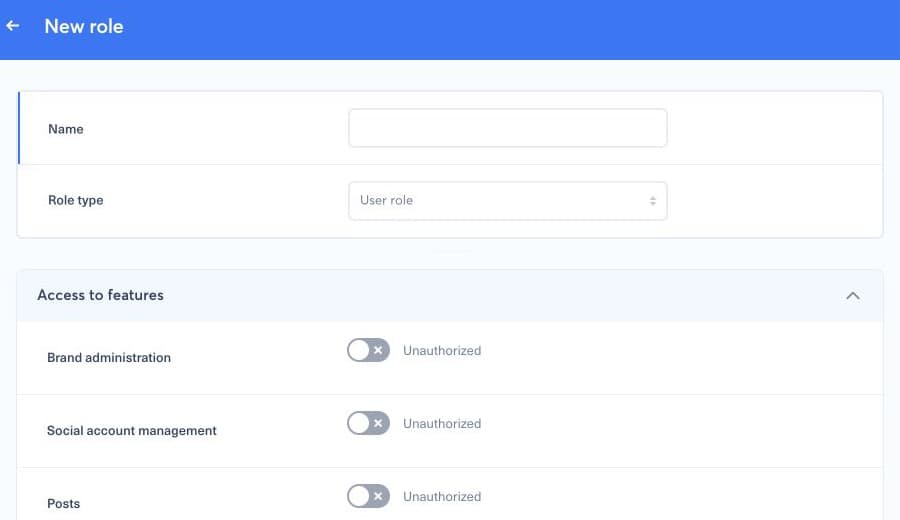
- Enter a unique name that describes the job or access level, such as “Editors” or “Analytics read only”.
- Select the role type. Use a user role for a person and an API token role only for an integration designed to authenticate through the API.
- Expand Access to features and enable only the product areas required for the role.
- Expand Access to brands. For each required brand or social account, choose the appropriate read or write access when those choices are available.
- Review the complete permission set, then select Save.
For an external integration, continue with How do I create an API token?. The token can use only a role whose type is API token role.
2. Verify the result#
Assign the role to a test user or the intended teammate, then ask them to sign in again and verify the relevant navigation and actions. Do not add administrator access merely to solve one missing button: update the specific feature or brand permission instead. If a user has several roles, their effective access can reflect the combination, so review every assigned role when troubleshooting unexpected access.