1. What is a dynamic URL parameter in Nonli?#
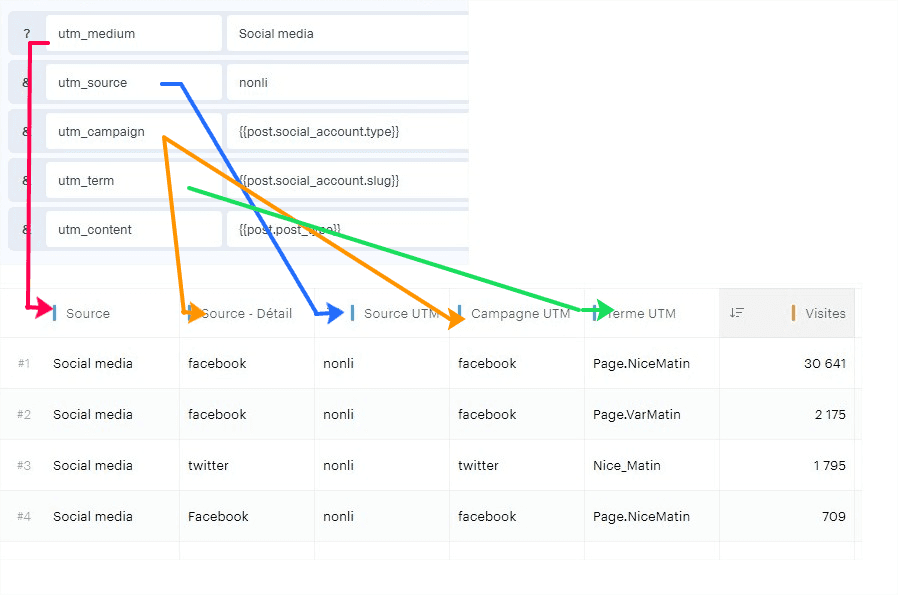
Dynamic URL parameters let you automatically add tracking parameters to URLs published with Nonli. They help Google Analytics, Piano Analytics or another analytics tool identify the click source, social network, social account, bot that generated the post, or the related shortlink.
These parameters are disabled by default: they are added only when a brand explicitly configures them. They then belong to the customer's analytics tagging plan, and the customer must verify that the chosen parameters, its CMP and the destination measurement tool comply with its own compliance obligations.
They can be used with regular posts, bot-generated posts and flying links.
2. How do you configure dynamic URL parameters in Nonli?#
2.1. Access the brand URL settings#
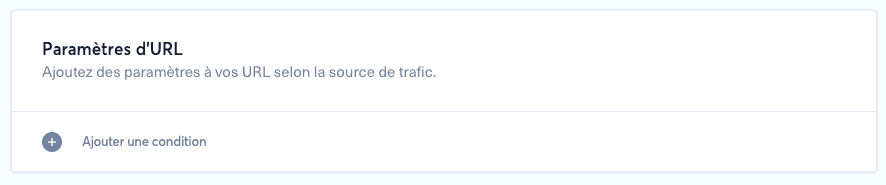
Click the burger menu, go to "Brands", select the brand you want to configure, then scroll down to "URL settings".
2.2. Create a parameter rule#
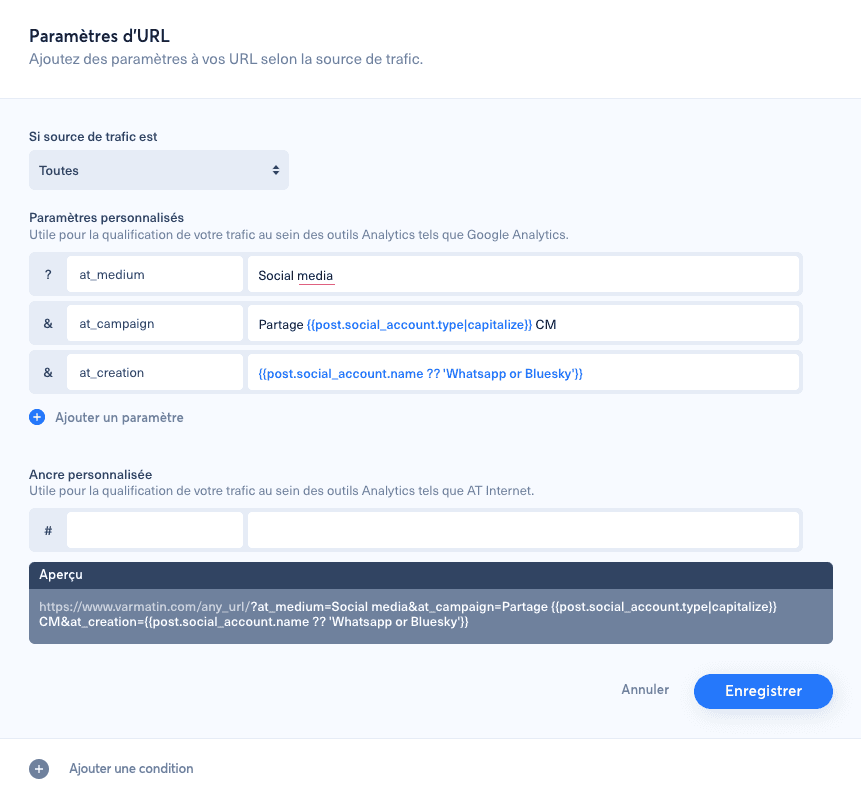
Each rule defines:
- the parameter type:
?for a regular URL query parameter or#for an anchor such asxtor; - the traffic source: a specific network, or "All" to apply the rule to every source;
- the parameter key: for example
utm_source,utm_medium,utm_campaign,utm_content,utm_term,at_creation,mtm_campaignorxtor; - the value: either a fixed value or a dynamic value computed from the post.
💡 We recommend selecting "All" as the traffic source when the dynamic value already contains the social network or account. This avoids duplicating the same configuration network by network.
2.3. Understand how Nonli adds parameters to links#
When Nonli builds the final link, it analyzes the target URL, brand and traffic source, then adds the parameters that match the configured rules.
Important details:
- if a parameter already exists in the target URL, Nonli does not replace it;
?parameters are added to the query string;#parameters are added as an anchor only if the URL does not already have one;- dynamic values use a template syntax with double braces.
Example:
1utm_source = {{ post.social_account.type }}2utm_medium = social3utm_campaign = nonli4utm_content = {{ post.author|slugify }}5utm_term = {{ post.short_id }}This configuration sends the social network, medium, campaign, post author, and shortlink identifier to the analytics tool.
In this example, |slugify is a filter applied to the returned value. It turns text such as France News Bot into france-news-bot, without spaces or special characters, so the value remains clean and stable in a URL.
3. How do you configure Nonli for Google Analytics?#
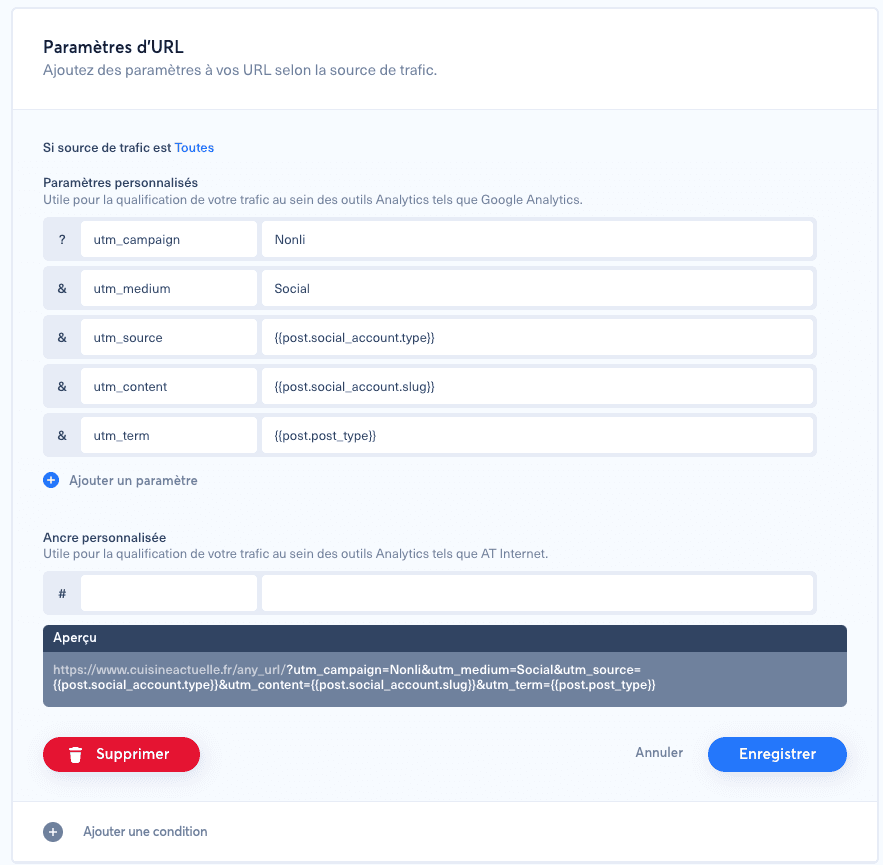
Google Analytics recognizes the following UTM parameters:
| Parameter | Usage |
|---|---|
utm_source | Traffic source, such as facebook, linkedin, threads |
utm_medium | Marketing medium, such as social |
utm_campaign | Campaign name, such as nonli or an operation name |
utm_content | Variation or detail, such as the author, account or placement |
utm_term | Keyword or additional identifier, such as the short_id |
Example setup for tracking Nonli posts in Google Analytics:
1utm_source = {{ post.social_account.type }}2utm_medium = social3utm_campaign = nonli4utm_content = {{ post.author|slugify }}5utm_term = {{ post.short_id }}Here too, |slugify automatically formats the author before adding it to utm_content. If the post comes from a bot, post.author contains the bot name.
4. How do you configure Nonli for Piano Analytics?#
Piano Analytics can use its own tagging plan or reuse UTM parameters if UTM compatibility is enabled in your Piano configuration.
Two approaches are possible:
- use the same UTM parameters as Google Analytics if your Piano setup accepts them;
- use parameters dedicated to your Piano tagging plan, such as
at_,mtm_parameters or anxtoranchor.
Example with at_ parameters:
1at_medium = social2at_platform = {{ post.social_account.type }}3at_account = {{ post.social_account.slug }}4at_campaign = nonli5at_content = {{ post.author|slugify }}The |slugify filter avoids spaces, accents or special characters in the value sent to Piano Analytics.
Example with an xtor anchor:
1xtor = CS6-2-[{{ post.social_account.type }}]-[{{ post.social_account.slug }}]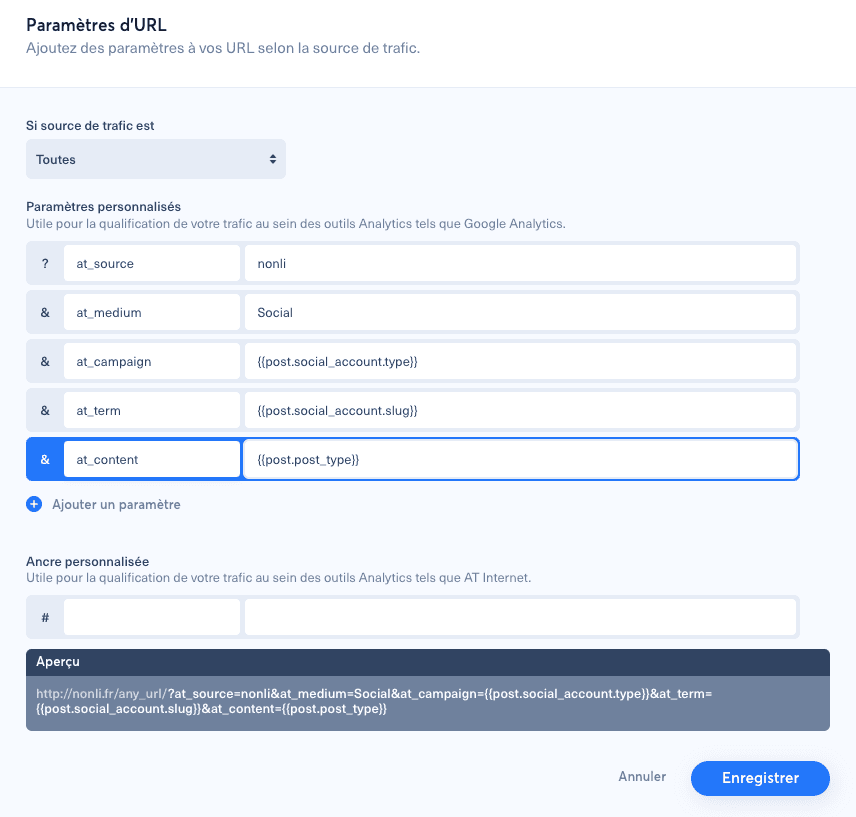
5. Which dynamic variables are available in Nonli?#
These are the most useful variables for configuring URL parameters.
5.1. Traffic source and social account variables#
| Variable | Description |
|---|---|
{{ referer }} | Current traffic source |
{{ post.social_account.type }} | Social network, such as facebook, linkedin, instagram |
{{ post.social_account.name }} | Social account or page name |
{{ post.social_account.slug }} | Social account or page slug |
{{ post.social_account.external_id }} | External social account identifier |
5.2. Post variables#
| Variable | Description |
|---|---|
{{ post.post_type }} | Post type |
{{ post.short_id }} | Nonli shortlink identifier |
{{ post.author }} | Post author in Nonli. If the post comes from a bot, this value contains the bot name |
{{ post.user_id }} | Identifier of the user or system that created the post, when available |
post.user_id can be a regular user identifier or a negative technical value. The main values to know are:
| Value | Meaning |
|---|---|
| Positive ID | Real Nonli user |
-1 | Post created by a Nonli bot |
-2 | Post created by a repost bot |
-5 | Post coming from Social Listening |
-6 | Technically rebuilt post |
-404 | Unknown user |
5.3. URL and source content variables#
| Variable | Description |
|---|---|
{{ post.source.organic_url }} | Source organic URL, when available |
{{ post.source.target_canonical_url }} | Source canonical URL, when available |
{{ post.source.social_account_name }} | Source social account name, when available |
{{ post.source.published_at }} | Source publication date, when available |
5.4. Function to identify a link in the message or first comment#
You can also use this function to distinguish the link placement:
1{{ isComment() ? 'comment' : 'message' }}6. Which filters can you use in dynamic values?#
Dynamic values also accept filters to clean or transform the result.
lower:{{ post.social_account.type|lower }}converts to lowercase.upper:{{ post.social_account.slug|upper }}converts to uppercase.slugify:{{ post.author|slugify }}turns text into a URL-friendly slug, for exampleFrance News Botbecomesfrance-news-bot.encode:{{ post.author|encode }}URL-encodes the value.clean:{{ post.author|clean }}cleans the text value.
7. How do you add UTM, AT or MTM parameters with flying links?#
Flying links let you automatically track traffic from social channels that are not managed directly by Nonli, such as Threads, Bluesky or WhatsApp.
To do this:
- create a Target URL;
- create one flying link per channel;
- add a suffix to the
shortId, such as.THfor Threads,.BSfor Bluesky and.WAfor WhatsApp; - configure the dynamic parameter in the brand URL settings.
Example redirects:
https://myshortdomain.com/7qz.THredirects tohttps://www.example.com/article?at_creation=Threads;https://myshortdomain.com/7qz.BSredirects tohttps://www.example.com/article?at_creation=Bluesky.
7.1. Add the tagging algorithm#
In the brand URL settings, paste the algorithm below as the dynamic value for the at_creation parameter, or for the tracking parameter you want to populate.
It detects flying link suffixes (.WA, .BS, .TH) and returns the right channel. If no specific suffix is found, it falls back to the post social network type.
1{%- if post.social_account.type == 'flying' -%}2 {%- if post.short_id ends with 'WA' -%}3 WhatsApp4 {%- elseif post.short_id ends with 'BS' -%}5 Bluesky6 {%- elseif post.short_id ends with 'TH' -%}7 Threads8 {%- else -%}9 {{- post.social_account.type | capitalize -}}10 {%- endif -%}11{%- else -%}12 {{- post.social_account.type | capitalize -}}13{%- endif -%}