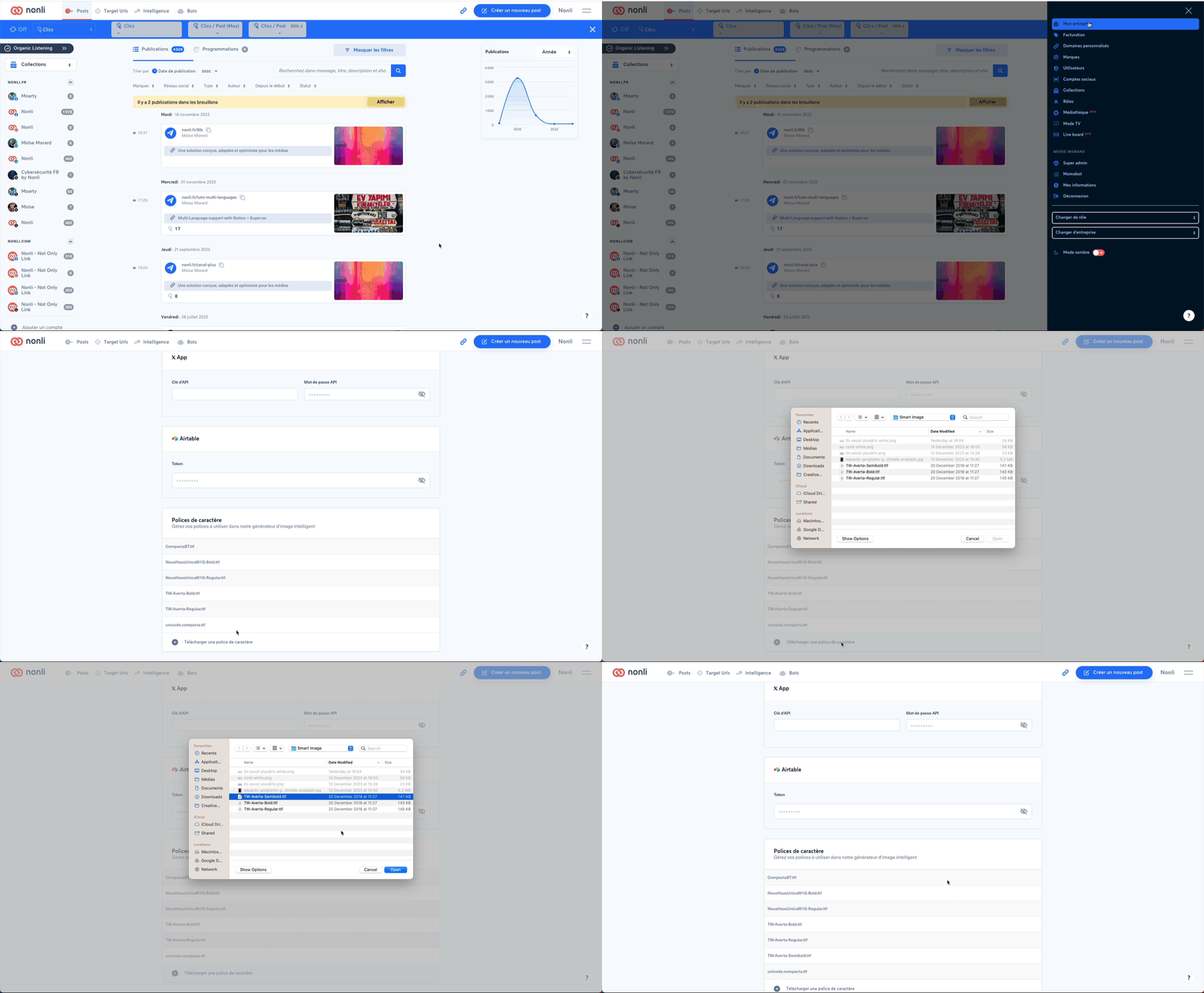
To create or edit a Smart Image template for bots and posts, open the relevant brand and create the template you need.
1. Add your font
Open the burger menu, click "My company", scroll down and upload your font so it can be used in Smart Images.
2. Edit the default template
Open the brand settings, scroll to Smart Image generation, choose the format, text position, text size, font, overlay color and opacity, then add a logo if needed. Save the configuration when the template is ready.
3. Use templates when creating posts
Create a post, choose or upload an image, click the three dots on the image, select Smart Image Generator, choose a template, adapt the text, then save the generated image.
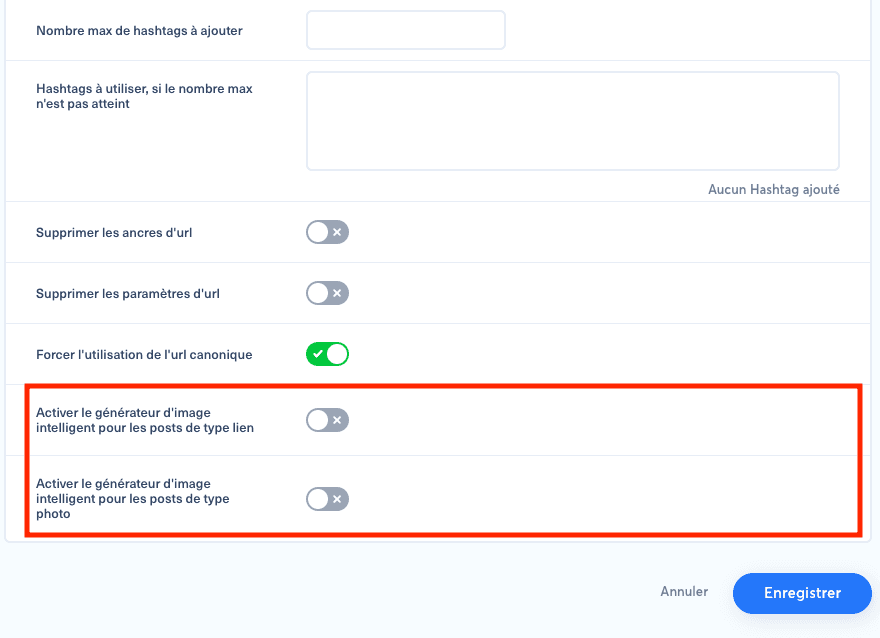
4. Use Smart Images automatically in bots
At the bottom of the bot configuration, enable the template you want for photo posts, link posts or both.