Smart Image Generator lets you automatically customize images with text, logos and visual effects for social media posts.
1. Quick start#
- Select an image from your media library.
- Click the Smart Image icon to open the editor.
- Configure the text, logo and effects.
- Preview the result in real time.
- Save the setup as a template for reuse.
2. Text#
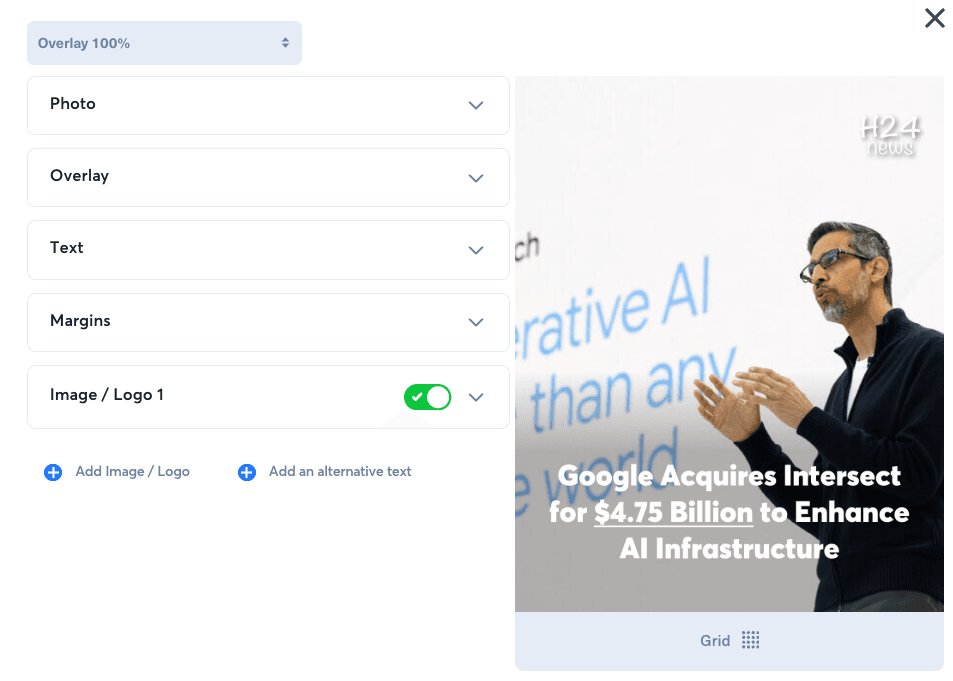
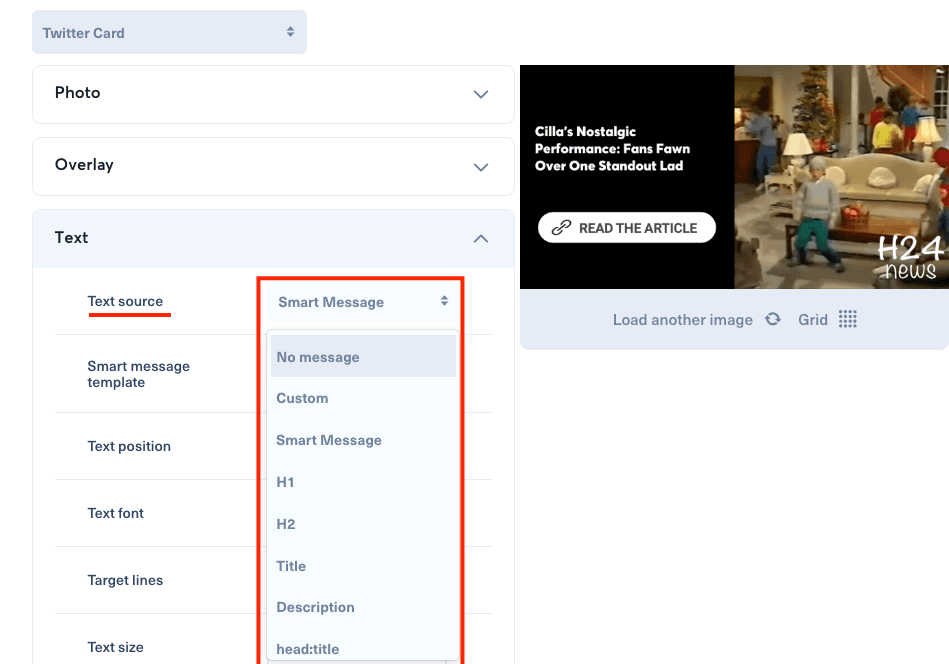
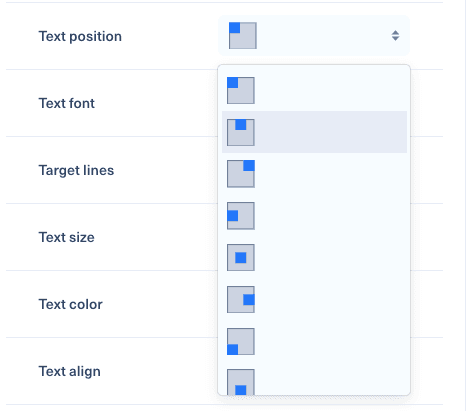
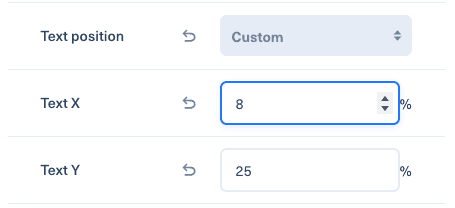
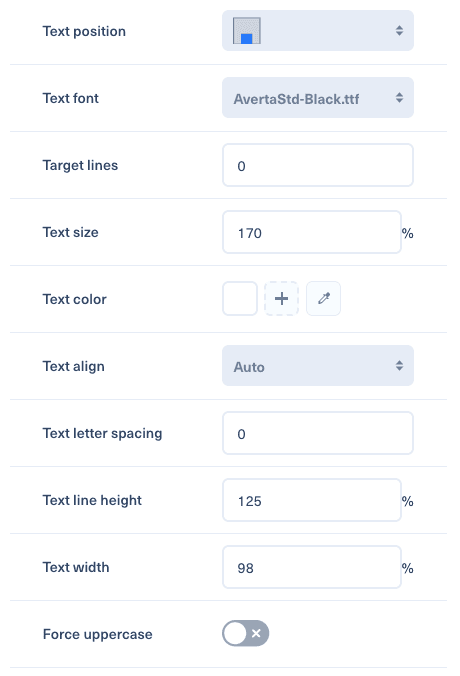
Smart Image supports up to 8 independent text areas. Text can come from custom input, the article title or a Smart Message template. You can choose preset positions, custom X/Y positions, typography, alignment, uppercase, width, line height and letter spacing.
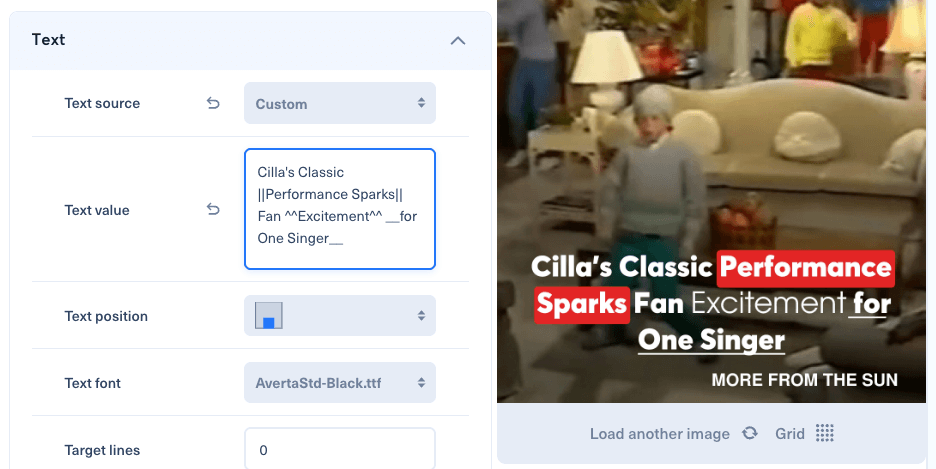
Use Target Lines to automatically resize text so it fits a precise number of lines. Inline formatting is also available with ||text|| for highlight, __text__ for underline and ^^text^^ for decorated text.
3. Logo#
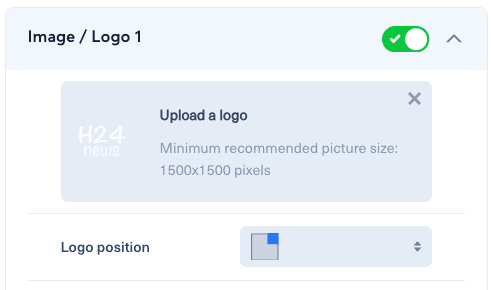
You can add up to 8 logos, configure their position, width, opacity, blur, border, radius and shadow.
4. Overlay#
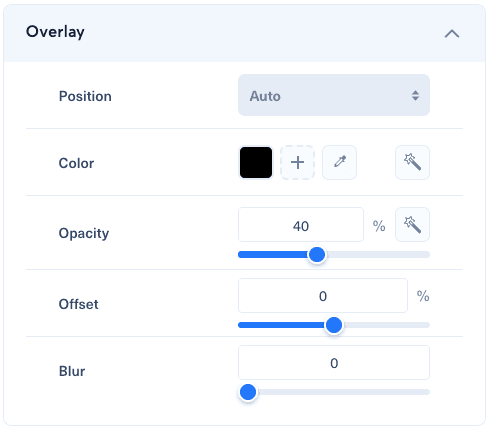
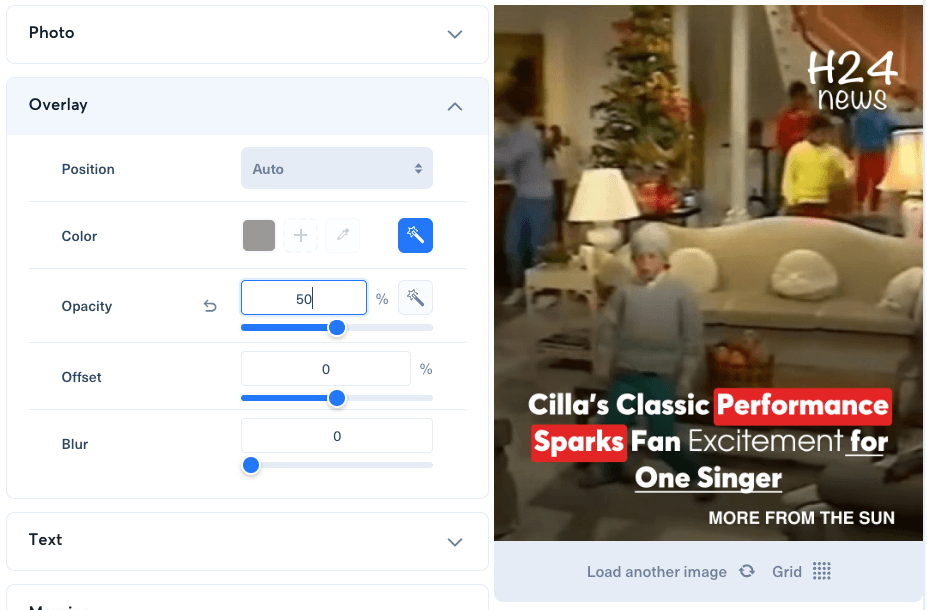
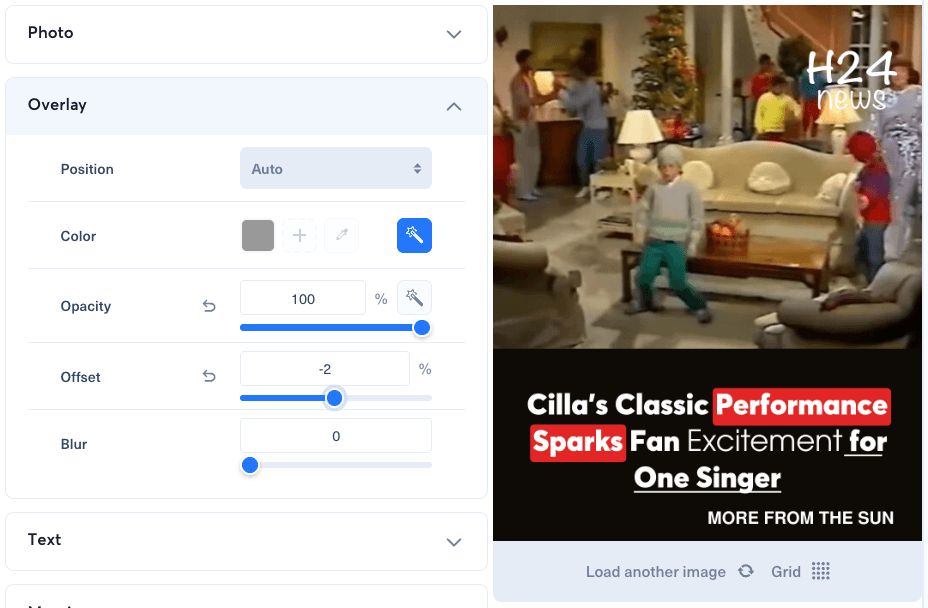
The overlay adds a colored layer over the image to improve text readability. You can choose color, opacity, position, size and background blur. At 99-100% opacity, Smart Cropping reserves an opaque area and automatically crops the image into the remaining space.
5. Image effects#
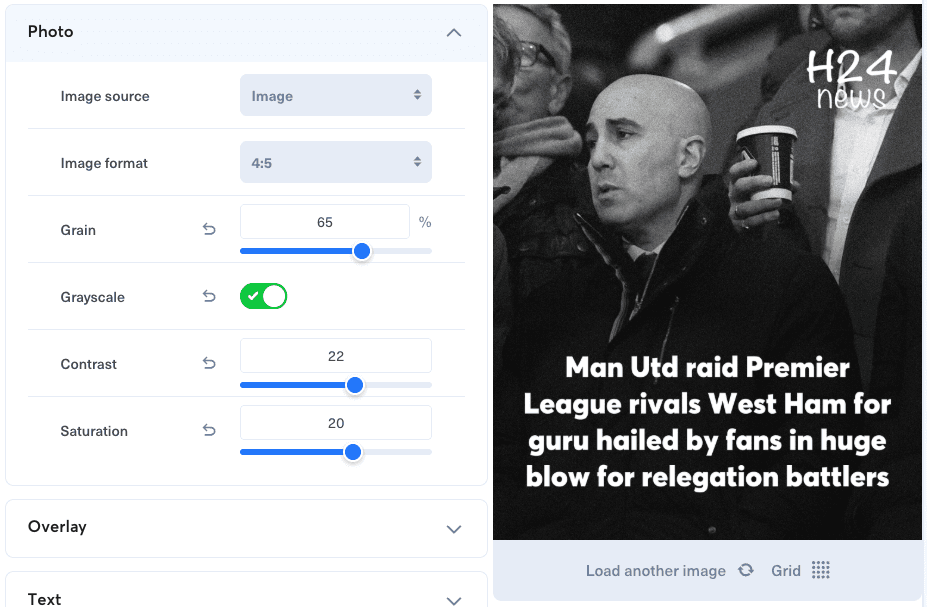
Available effects include grain, black and white, contrast and saturation.
6. Templates#
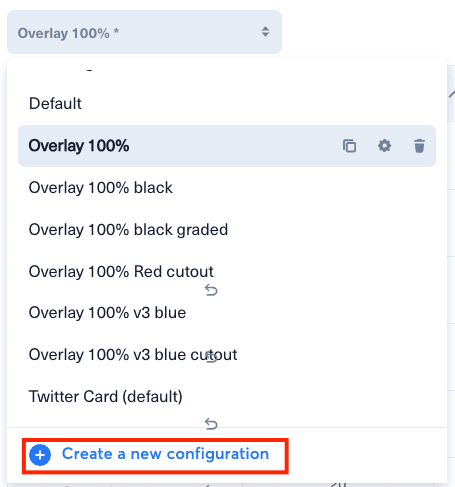
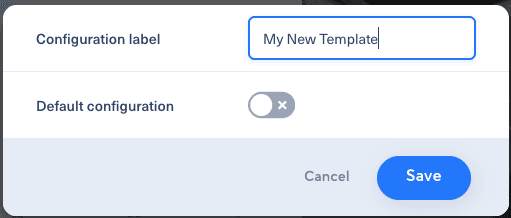
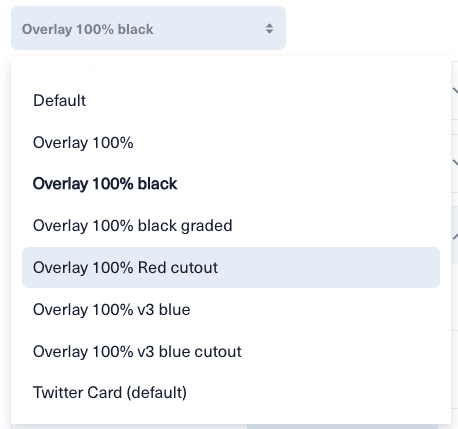
After configuring text, logos, overlay, effects and margins, click "Save as template" and give it a name. When you select a template later, all settings are applied automatically.
7. Best practices#
- Use an overlay to create contrast between text and image.
- Prefer contrasting colors.
- Use shadows to improve readability on complex images.
- Keep text width around 80-90%.
- Create templates by social network format.
8. Recommended formats#
| Network | Format | Ratio |
|---|---|---|
| Instagram Post | Square | 1:1 |
| Instagram Story | Vertical | 9:16 |
| Facebook Post | Landscape | 1.91:1 |
| Landscape | 1.91:1 |