In Nonli you can mention LinkedIn company pages in a LinkedIn post. Mentioning personal profiles (people) is not available in Nonli yet. This page explains how to add a page mention, how to check it, and what you can do for people and for automated posts. Status checked on 2026-10-26.
1. What LinkedIn allows and what Nonli supports#
These are two different questions:
- LinkedIn itself supports mentions of both members and organizations in posts. Its Posts API accepts both. The API that lets an app search for people to mention (People Typeahead) is restricted to developers LinkedIn approves, with the right permissions and page roles.
- Nonli today searches LinkedIn company pages only, and publishes mentions as company-page mentions. Personal-profile mentions need further work in Nonli. They are not enabled, and we cannot give a date.
So the limit described here is Nonli's current support, not a rule that LinkedIn forbids mentioning people.
2. Mention a company page in the post editor#
-
Create a post and select your LinkedIn page as the destination. Mention search uses only one network, picked from the selected accounts: when Bluesky, Facebook or Instagram accounts are also selected, the suggestions come from that other network instead of LinkedIn. To get LinkedIn page suggestions, select only LinkedIn accounts while you add the mention.
-
In the message field (Paste a link and/or write a message...), type
@followed by at least two characters of the company name, for example@Nonli. -
Pick the company in the suggestion list. Each suggestion shows the page picture, its name, the LinkedIn logo and its number of followers. Use these details to tell apart pages with similar names. You can also select the logo to open the page on LinkedIn in a new tab before choosing it.
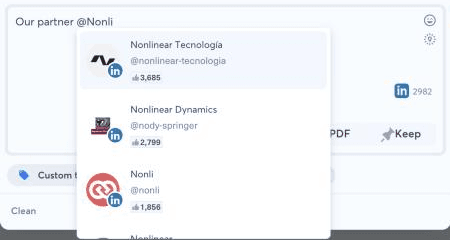
Suggestions for
@Nonli: similar names are told apart by the picture and the follower count. -
The selected mention is replaced by the page name, without
@, shown in the accent colour. That colour means Nonli has stored a real mention, linked to that page.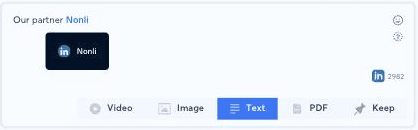
The selected mention, without
@, in the accent colour. Hovering it shows the LinkedIn logo and the page name.
If no suggestion appears, Nonli found no matching page for the text typed: refine the name, or use the exact name shown on the company's LinkedIn page.
You can add mentions the same way in the first comment of a LinkedIn post. See How to automatically create a first comment under your post.
3. Check that the mention targets the right page#
A name is not proof of identity: several pages can share the same or a similar name. Before you publish:
- Hover the mention: a tooltip shows the LinkedIn logo and the page name.
- Click the mention: the page opens on LinkedIn in a new tab. Check that it is the page you meant (URL, logo, description).
- Check the LinkedIn preview in the right panel of the editor.
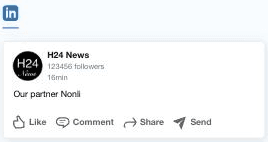
The LinkedIn preview of the post with the page mention. The page and follower count are test values.
If the mention is wrong, delete it and select the right page again.
4. Plain text versus a clickable mention#
Only a mention selected from the suggestion list becomes a clickable LinkedIn mention. Text that merely starts with @ (for example @Jane Doe typed without selecting a suggestion, or pasted from elsewhere) stays plain text. It is published as written, does not link to anyone and does not notify anyone.
If the editor shows Error on mention (You have mentions in your message that do not belong to one or more targeted network.), the message contains a mention made for another network. A mention belongs to one network: a LinkedIn page mention does not work on Facebook, and the reverse is also true. Remove the mention, or publish a separate version per network.
5. Mention a person#
Nonli cannot add personal-profile mentions to LinkedIn posts for now. To mention a person:
- Publish the post from Nonli.
- Open the published post on LinkedIn and edit it there. LinkedIn's help page Mention people in your posts explains how to add a mention, including by editing a post.
LinkedIn's own rules then apply: some members turn off mentions, and LinkedIn may limit mentions of members you are not connected with.
6. Automated posts#
Writing text automatically and identifying a LinkedIn page are two different things:
- A Smart Message or a bot can write any text, including
@followed by a name. That text stays plain text on LinkedIn: Nonli does not turn names written by a template into page mentions, and does not detect companies or people in an article automatically. - Clickable mentions are created when you select a page in the editor, as described above.
For other networks, mapping known article authors to their accounts is explained in How to map article authors to social mentions with Airtable. It does not enable personal-profile mentions on LinkedIn.
If you need LinkedIn page mentions in automated posts, the right setup depends on your use case. Contact support with:
- the URL of a source article,
- the post text you want to obtain,
- the exact URL of the LinkedIn page to mention.
Never send a password, a token or other login details to support.
7. Troubleshooting#
| Problem | What to do |
|---|---|
| No suggestion appears | Type at least two characters after @, check that only LinkedIn accounts are selected (a selected Bluesky, Facebook or Instagram account takes over the search), and try the exact page name. |
| The wrong company was selected | Click the mention to open the page, delete it if it is wrong, then select the right page using the picture and follower count. |
| A person cannot be found | Personal profiles are not searched by Nonli. Add the mention on LinkedIn after publication. |
The published post shows @name as plain text | The mention was typed, not selected. Edit the post on LinkedIn, or recreate the mention in Nonli before publishing. |
| Error on mention | The message contains a mention for another network. Remove it or create one version per network. |