You can ask Nonli to share your Threads post to the Instagram Story of the account linked to that Threads profile when publishing. The account link is required; displaying profile badges is optional. A hidden badge does not prevent this sharing.
1. Check your accounts in Meta Accounts Center#
Your Threads account must be linked to the Instagram account that should receive the Story. Connecting two separate accounts to Nonli, using the same username, or adding a URL to your bio does not create that Meta account link.
To find your accounts without displaying a public badge:
- On the Threads website, open More → Settings while signed in to the Threads profile you use in Nonli.
- Open Accounts Center.
- Under Profiles and personal details, find your Threads profile and the intended Instagram account.
- Check their usernames. In the example below, both
h24news_offprofiles appear in the same Accounts Center.
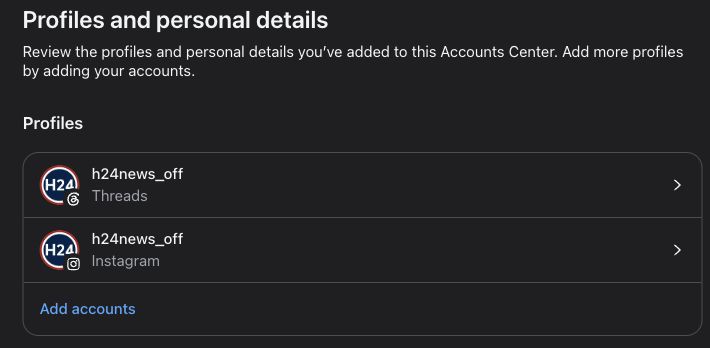
This screen lets you find the accounts grouped together at Meta, even when their public badges are hidden. No profile changes are needed.
If the intended Instagram account is missing, or several accounts make the Story destination unclear, contact Nonli support to verify the association. The presence of several accounts in one Accounts Center does not, by itself, identify which one will receive the Story. Do not create a second Threads profile to troubleshoot the link.
1.1. The badge: an optional shortcut to check the associated profile#
If the Instagram icon is already visible on your Threads profile, open it to check that it leads to the intended Instagram account.
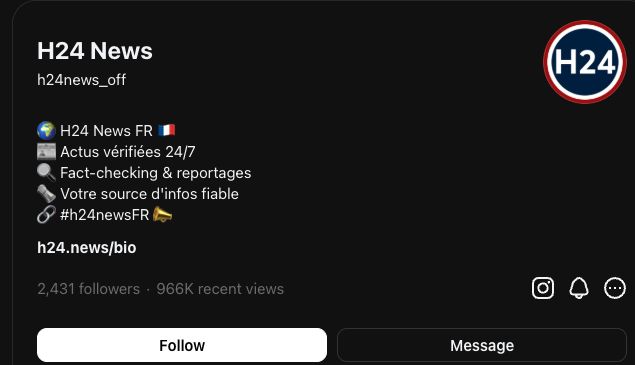
On Threads, the Instagram icon appears here on the right, above the profile buttons.
You can also open the Threads badge on the Instagram profile, when visible, to check the profile in the other direction.
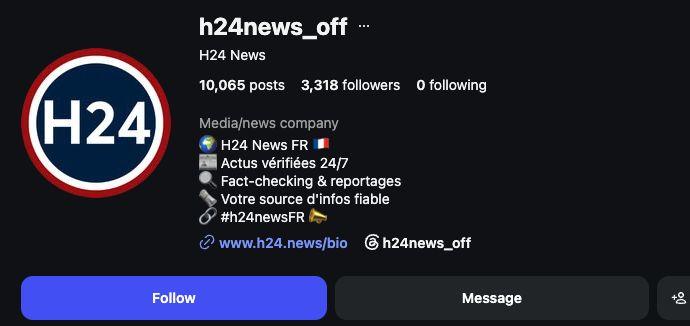
On Instagram, the Threads badge appears here below the bio, beside the website link.
A missing badge does not mean the accounts are unlinked. The “Show Instagram badge” option in Threads and “Show Threads badge” option in Instagram, available under Edit profile, control their public visibility. You can leave them off. The screenshots show the English web interfaces; labels and placement can vary by version.
2. Reconnect Threads to grant the new permission#
If you connected your Threads account to Nonli before Instagram Story sharing became available, reconnect it once to grant the new Meta permission. This does not remove the account or its existing content from Nonli.
-
In Nonli, open the burger menu, then Social Accounts.
-
Find the Threads account, then click the blue Reconnect button on its row.
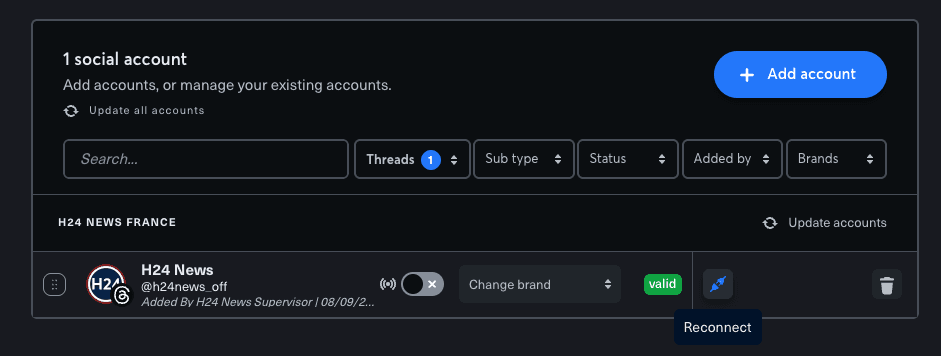
Use Reconnect on the existing Threads account; you do not need to delete and add the account again.
-
On the Meta consent screen, check that Share Threads content to Instagram (Optional) is included in the requested access. This is the permission required for Threads → Instagram Stories sharing.
-
Click Continue as… and complete the authorization flow. If Meta lets you edit access, keep this permission enabled.
-
Return to Nonli and confirm that the Threads account is valid.
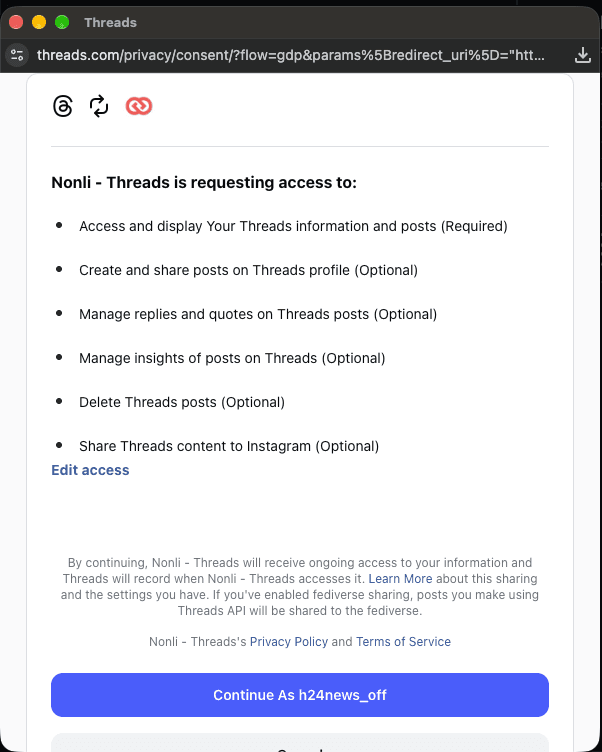
The permission is shown as optional by Meta, but it must be granted to use Instagram Story sharing from Nonli.
If you reconnect without granting this permission, publishing to Threads can still work, but Nonli cannot also create the Instagram Story. Reconnect again and enable the permission, or contact Nonli support if it is not offered.
3. Enable Story sharing in Nonli#
- If needed, connect your Threads account to Nonli.
- Open Posts, click Create a new post, and select the Threads account.
- Write your post and add its media as usual.
- Enable Also share to Instagram Story below the editor.
- Use the sun/moon control beside the enabled option to choose a light or dark Story background. Light mode is the default.
- Choose immediate publication or a scheduled time, review the selected account and content, then confirm publication as usual.
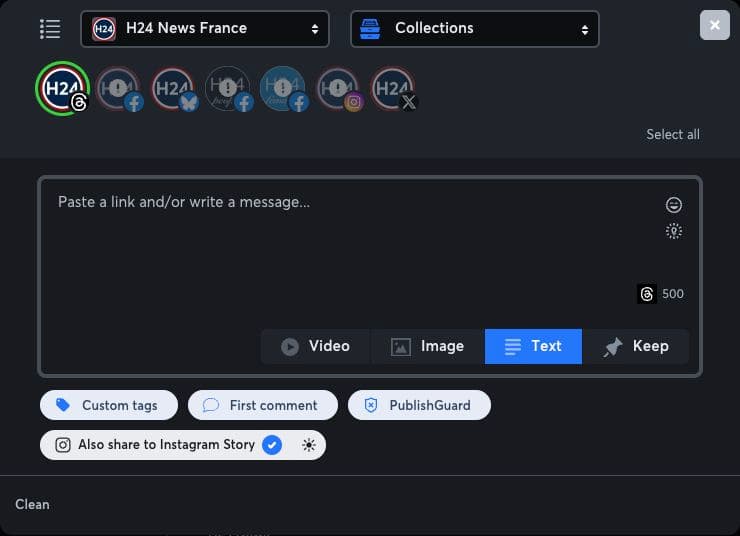
The “Also share to Instagram Story” option is below the editor. The sun icon immediately to its right controls the Story background.
The Story goes to the Instagram account linked to the selected Threads account. This option does not apply to other social networks selected for the post. If it is missing, check that you selected Threads and that the account connection has the Instagram Story sharing permission; reconnect the Threads account to grant it if needed.
4. Check the result on both networks#
A published Threads post does not guarantee that the Instagram Story was created. Meta can publish the Threads post even when Story sharing fails. Check both profiles before trying again, to avoid publishing the same Threads post twice.
The Story follows the linked Instagram account's audience and privacy settings and normally expires after 24 hours. See Meta's explanation of Threads Story sharing.
5. Why does Threads keep redirecting me to Instagram?#
During our tests, opening threads.com repeatedly redirected a user to instagram.com. Our team identified this as a Meta-side issue; deleting the stored data for threads.com only resolved the tested case in Chrome.
This clears local cookies and site data, not your posts or accounts. You may need to sign in to Threads again. Use the instructions for your desktop browser below; they are not mobile-browser instructions. The other browsers offer equivalent site-data removal, but we have not confirmed recovery from this specific redirect on each one.
5.1. Google Chrome#
- Copy
chrome://settings/content/allinto the address bar and press Enter. - Search that settings page for
threads.com. - Click the trash icon beside the domain and confirm.
- Return to Threads and sign in again if requested.
5.2. Microsoft Edge#
- Open Settings → Privacy, search, and services → Cookies.
- Open See all cookies and site data, then search for
threads.com. - Expand the matching entry if necessary, click its delete icon and confirm if prompted.
- Return to Threads.
Microsoft's site-specific cookie instructions.
5.3. Mozilla Firefox#
- Open Settings → Privacy & Security.
- Find Cookies and Site Data or Browsing data, then open Manage Data or the option to clear data for specific sites. The wording depends on your Firefox version.
- Search for
threads.com, select the matching entry and click Remove Selected. - Click Save Changes, confirm, then return to Threads.
Mozilla's site-specific data instructions.
5.4. Safari on macOS#
- Open Safari → Settings → Privacy.
- Click Manage Website Data and locate
threads.com. - Select it, click Remove, then Done if shown.
- Return to Threads.
Apple's website data instructions.
Remove only the matching Threads entry: do not clear all browsing data. If no matching entry exists, or the redirect persists after signing in again, contact Nonli support with your browser, operating system and the steps already tried. This workaround is not a guaranteed fix for every redirect.