Invite each person from Users, give them only the roles they need, and let them complete activation and two-factor authentication (2FA) themselves. From Monday 28 September 2026 at 09:00 (Paris time), existing users also configure an authenticator app once, at their next sign-in. Never share a password, one-time code, QR secret, or backup code with an administrator or with Nonli support.
1. Before you send the invitation#
- Use the teammate's individual professional email address. Shared user accounts prevent reliable access control and should not be used.
- Decide which brands and roles the person needs. A company administrator can change these assignments later.
- Ask the recipient to install an authenticator app before their first sign-in if they do not already use one.
2. Invite the user#
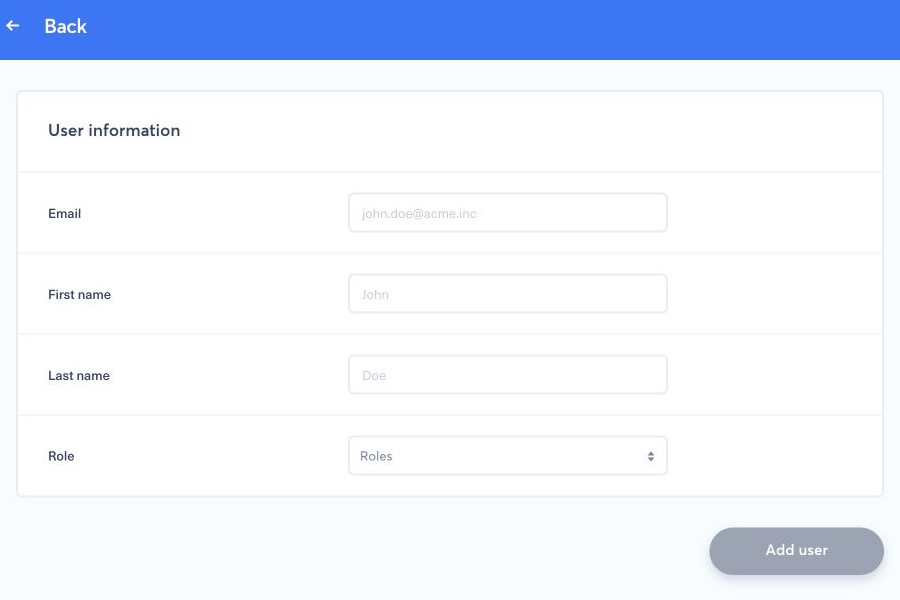
- Open the main menu, select Users, then select Add user.
- Enter the recipient's email address and assign the appropriate role or brand access.
- Review the access before sending the invitation. Do not grant an administrator role merely to bypass a missing permission.
- Send the invitation. The user appears in the list while activation is pending.
The recipient must open their own invitation link, choose their own password, and follow the displayed enrollment flow. They first verify their phone number with the SMS code requested by Nonli. During 2FA enrollment, they then scan the QR code with their authenticator app, enter the generated one-time code, and store any backup codes somewhere private. A QR code or backup code grants access and must never appear in a support screenshot.
3. Authenticator setup at sign-in for existing users#
From Monday 28 September 2026 at 09:00 (Paris time), every existing user of a company whose two-factor policy is enabled also has to configure an authenticator app once, at their next password or SSO sign-in. An already open session keeps working until it expires or the user signs out. The step takes about two minutes:
- Sign in with your password or SSO, then enter the one-time code received by email or SMS, as before.
- On the authenticator setup screen, scan the QR code with your authenticator app, or type the manual key displayed next to it.
- Enter the 6-digit code generated by the app and confirm. The session opens on the usual home page.
The setup is requested only once. At the next sign-ins, Nonli asks for the code from your authenticator app, and the SMS fallback remains available on that screen. No backup codes are shown during this enrollment; you can generate them later from My information. Complete the enrollment in the tab that started the sign-in, without reloading it.
The QR code displayed at sign-in is valid for 15 minutes; reloading or reopening the page generates a new QR code and invalidates the previous one.
If a code is rejected with the message "The code is not valid", follow these steps in order:
- Check the phone's clock. Compare the time on the phone with the time on your computer, to the minute, then turn on automatic date and time. On iPhone: Settings → General → Date & Time → Set Automatically. On Android, the path varies by manufacturer, usually Settings → System → Date & time (on Samsung: Settings → General management → Date and time), then turn on the automatic date and time option.
- Wait for the next code in your authenticator app and enter it once.
- Only if codes are still rejected with a correct clock, delete any existing "Nonli" entry in your authenticator app, scan the QR code currently displayed, and immediately type the six-digit code. In Microsoft Authenticator, use "Add account" then "Other account (Google, Facebook, etc.)", not the work or school account option.
Nonli accepts codes from a phone whose clock is less than 30 seconds off. Between 30 and 60 seconds off, codes are accepted only intermittently. From about one minute off, every code is rejected, even after a perfect QR code scan: rescanning or regenerating the QR code cannot fix a wrong clock.
Once enrolled, the Two-factor authentication row of My information shows the Enabled status. This is also where you later replace the authenticator app, for example after changing phones, and where you regenerate backup codes.
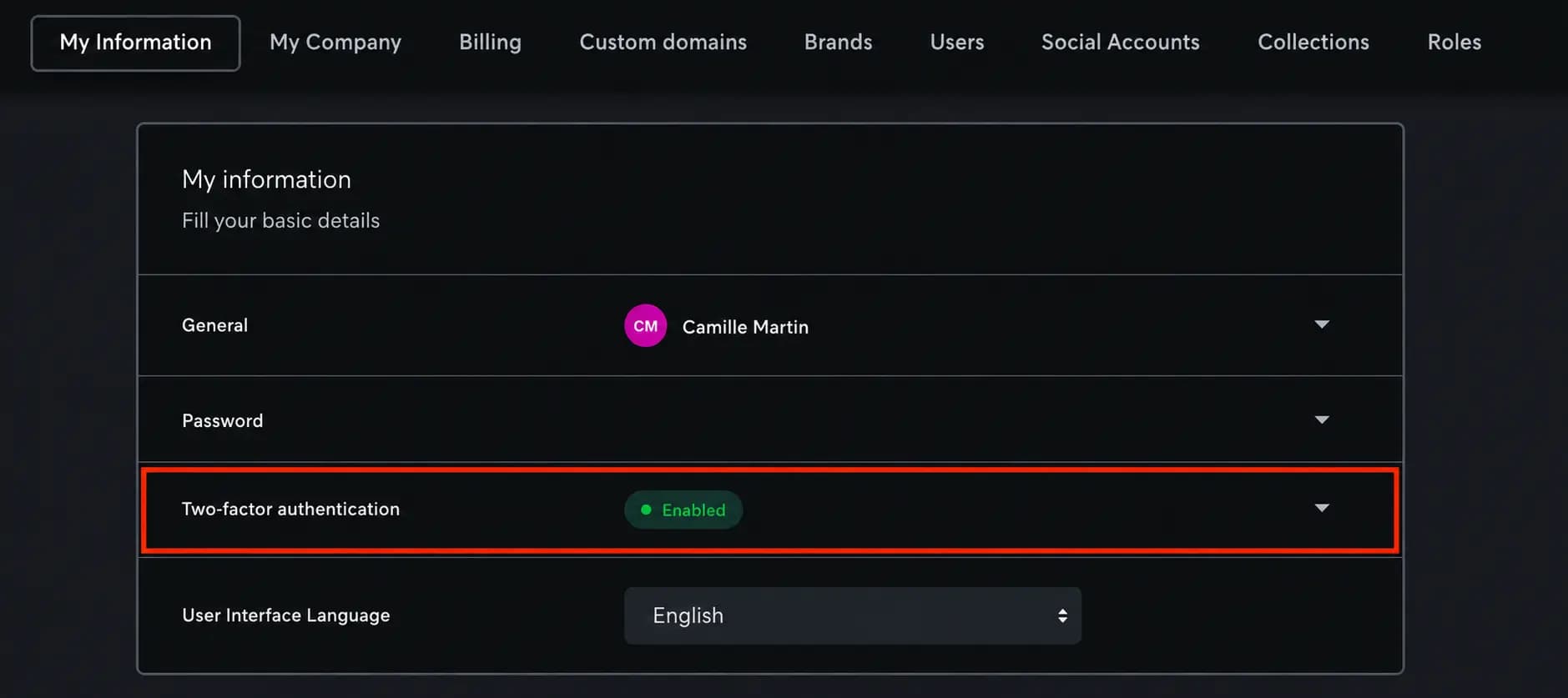
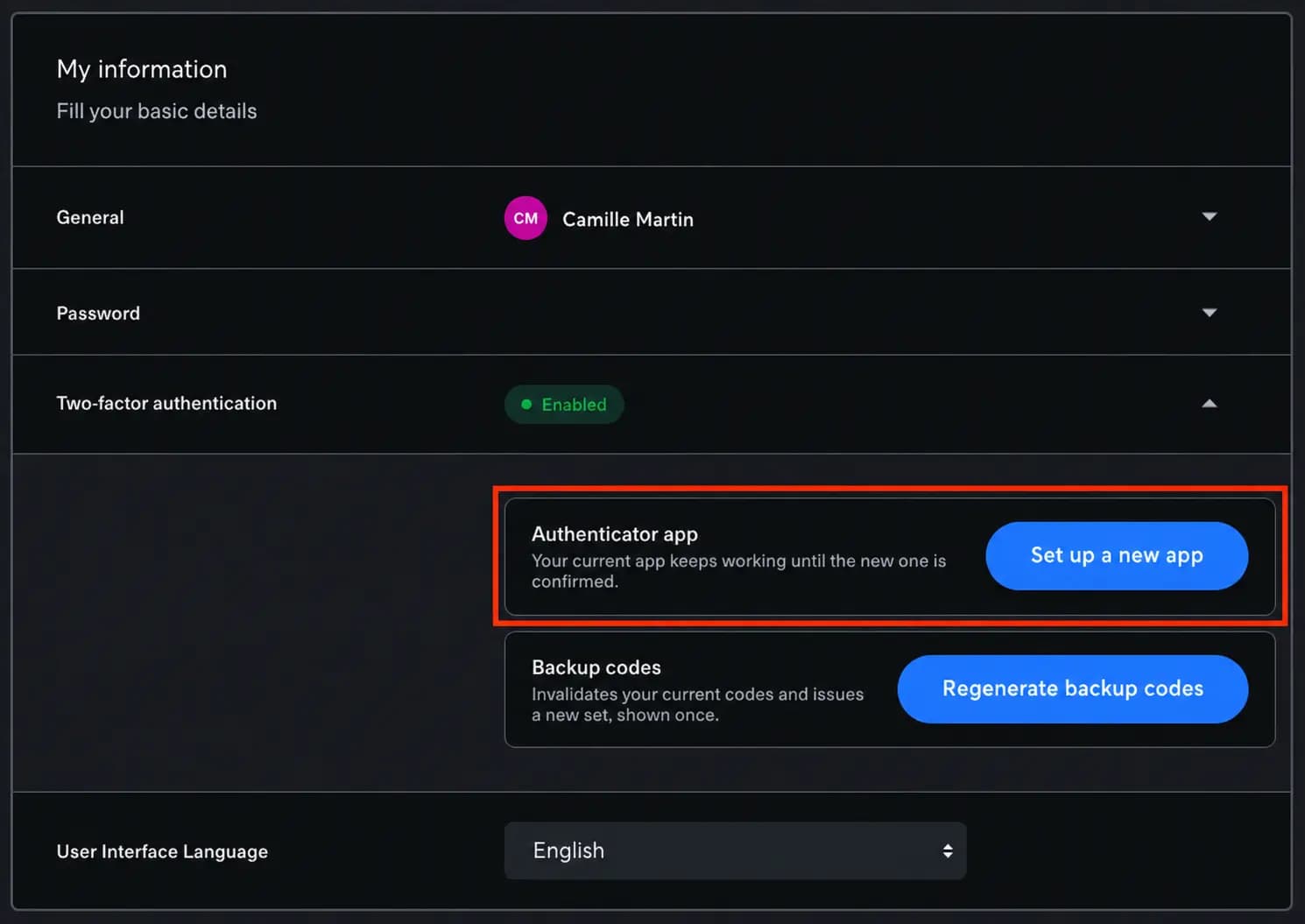
Expand the row to reach the Authenticator app and Backup codes settings. Set up a new app displays a new QR code after a verification with your current app or a backup code, and the current app keeps working until the new one is confirmed. Updating your phone number and validating the SMS does not transfer the authenticator: follow the email or phone update guide for the number, then use Set up a new app for the authenticator.
4. If the invitation or code does not work#
First check spam and quarantine folders and confirm that the address in Users is correct. A company administrator can use Resend confirmation link for a pending user. Use only the newest link after a resend.
If mail to the address bounced, or the email address or phone number is wrong, do not redirect an invitation or verification code to another person. Ask the account owner to follow the email or phone update guide, or contact support with the safe details listed below when they cannot sign in. Restart activation from the newest invitation after the correction; old links and codes must not be reused.
If you are sent back to the sign-in page right after the email or SMS code, or you see a screen saying that the sign-in session expired and asking you to restart the sign-in, the authenticator step could not start in that tab. This happens after several quick attempts, a second tab, a page reload, or in a browser still running an outdated version of the application. Close every Nonli tab, reopen app.nonli.com with a forced reload (Ctrl+F5 on Windows, Cmd+Shift+R on macOS), wait about five minutes without a new attempt, then sign in again and enter the fresh code once. Reloading the page does not resend the email code; only a new sign-in does. If the same screen returns, retry in a private window or another browser, then contact support with a screenshot of the screen shown right after the code, never of a QR code. The account is not locked, and support cannot skip the authenticator setup.
Authenticator codes change every 30 seconds. If a code is rejected, start with the phone's clock as described in the setup steps above: turn on automatic date and time, wait for the next code, and enter it once. Do not retry an expired or already used code. The separate SMS validation code used by some account flows remains valid for 15 minutes.
Each account has its own QR code. Codes generated from someone else's QR code never validate your account, because each user has their own staged secret. If you scanned another account's QR code — for example one shown in a screenshot inside an internal tutorial — delete the wrong "Nonli" entry in your authenticator app, sign in with your own profile, and scan the QR code shown on your own screen. No support reset is needed.
Be careful: anyone who scanned a confirmed QR code can generate the owner's codes. If your QR code has been shared, remove or blur it in your tutorial, then open My information → Two-factor authentication → Set up a new app to replace the secret; the old QR code then stops working. Administrators writing internal guides: never include a real QR code or manual key in a screenshot.
5. Lost authenticator device or backup codes#
An administrator must not bypass 2FA or ask the user to disclose a code. Contact Nonli support from an address associated with the account and provide only the company name, affected user email, approximate failure time, and the visible error text. Never send a password, one-time code, backup code, QR code, or API key. Support will verify account ownership before explaining the available recovery path. A support reset of the authenticator applies only to an already enrolled user who lost their device; it does not remove the mandatory setup at sign-in.