The Nonli back-office calendar view helps you quickly review how your publications are distributed over time. Use it to check an editorial schedule, spot busy slots, compare volume by social network, and find posts for a specific date.
1. Open the calendar view#
In the back office, open Posts, then stay on Publications or Scheduled depending on the posts you want to review.
Click the calendar icon above the publications list. When you hover it, the tooltip reads Calendar view.
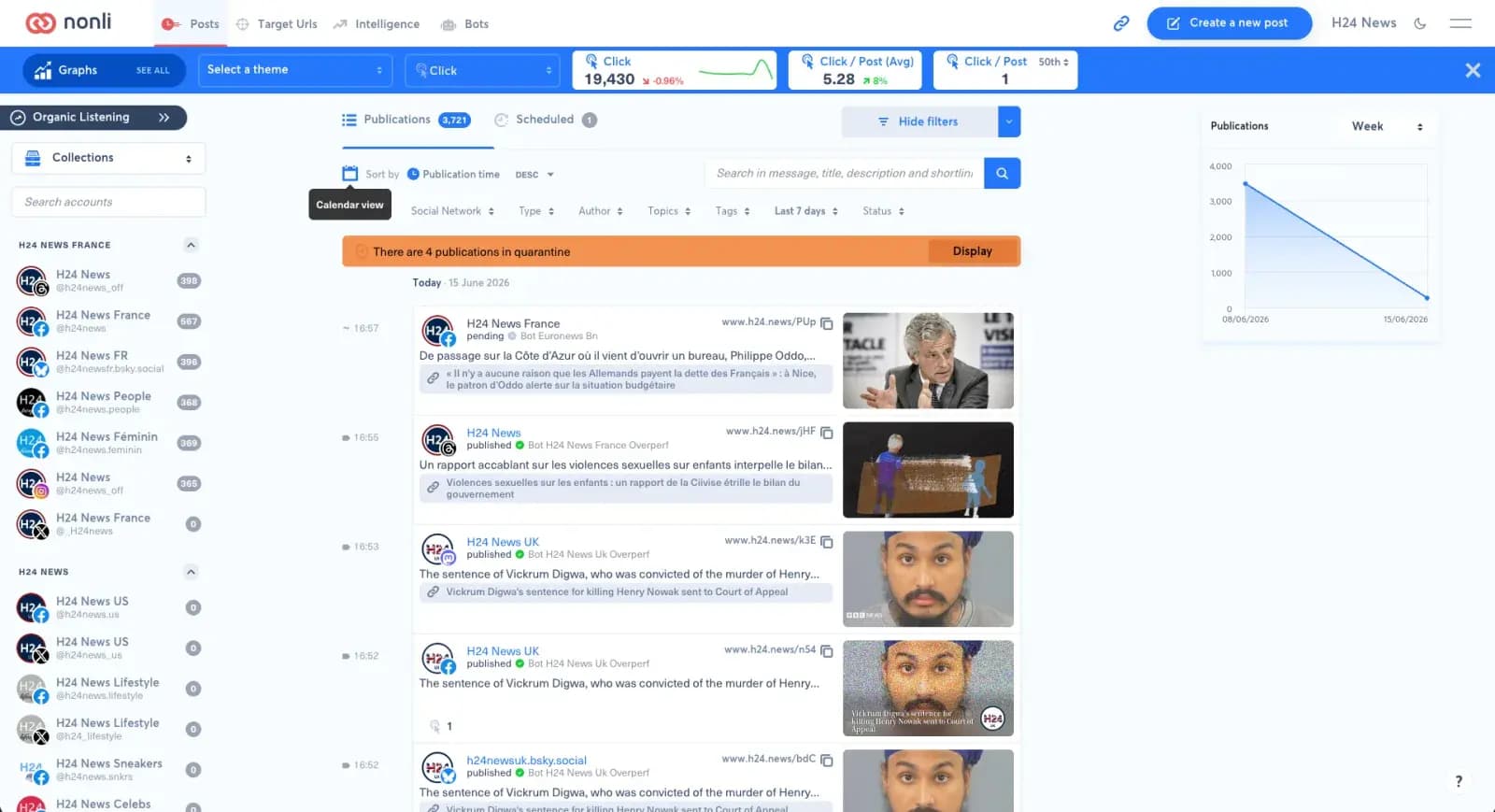
The calendar button switches from the publications list to the calendar view.
2. Read the month view#
The Month view gives you an overview of the month. Each cell represents a day and shows social-network badges with the number of publications available on that day.
Use the arrows to move to the previous or next month, and use Today to return to the current period.
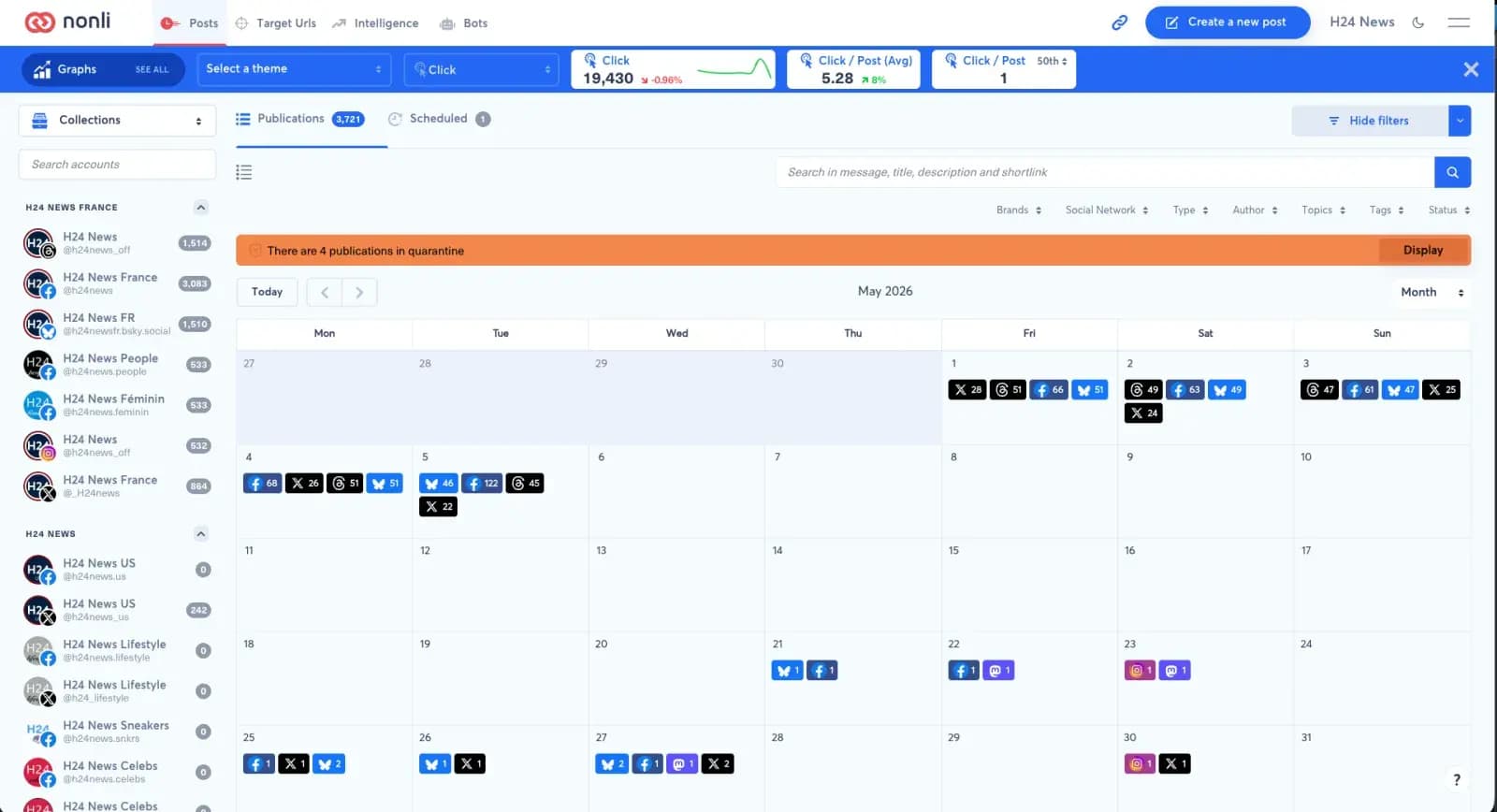
The month view helps you spot busy days and days without publications.
3. Change the displayed period#
The menu on the right side of the calendar changes the display scale:
- Day: follow one day of publications.
- Week: analyze hourly distribution across a week.
- Month: review the monthly schedule.
- Year: get a broader view of annual publication volume.
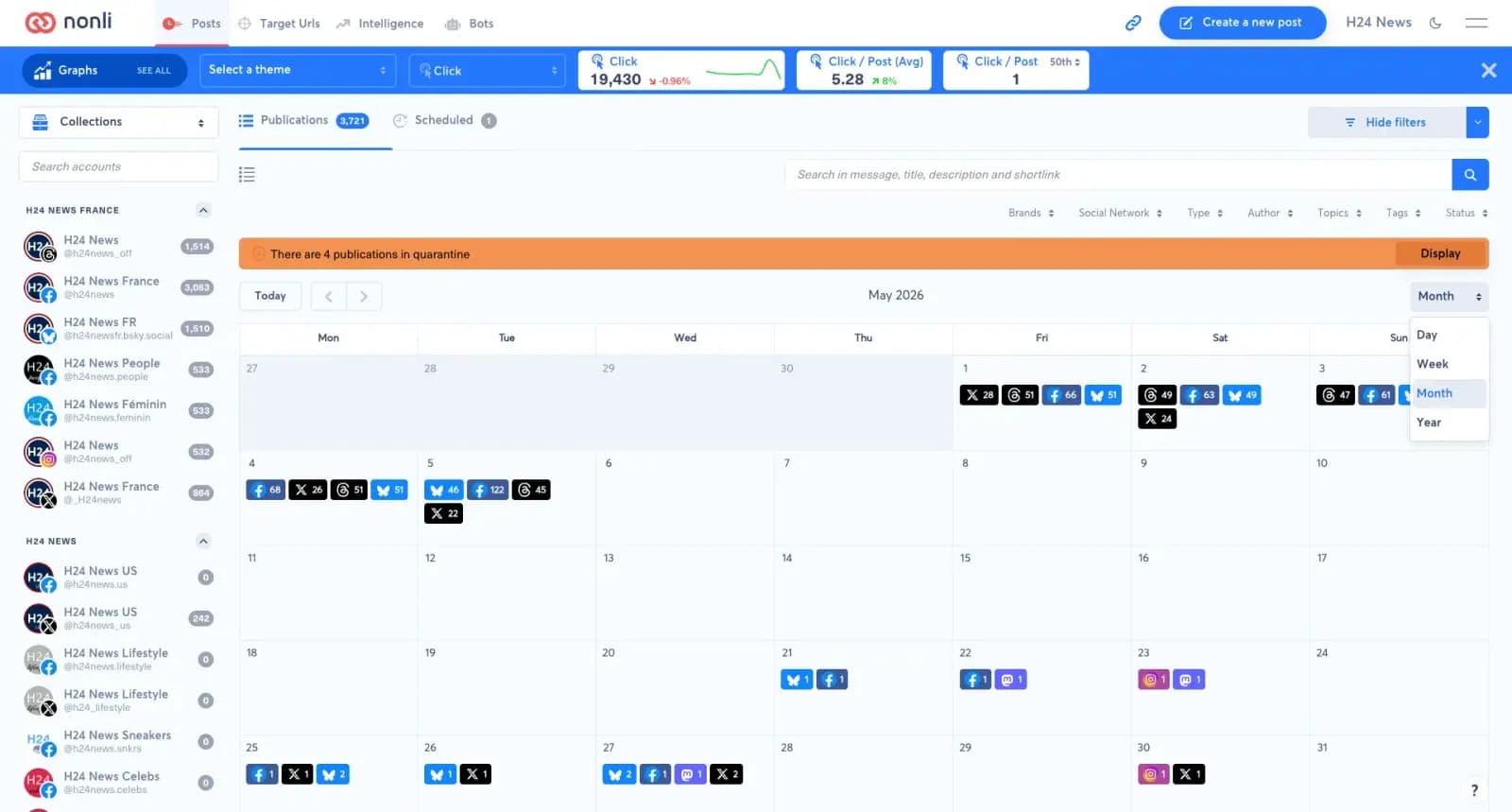
The period menu lets you move quickly between day, week, month, and year.
4. Choose the level of detail in week view#
In Week view, three buttons let you adjust the information density.
4.1. Standard view#
Standard view displays publications as detailed cards. Use it when you need to read the post content, identify the account, check the social network, review the attached image, or confirm the status.
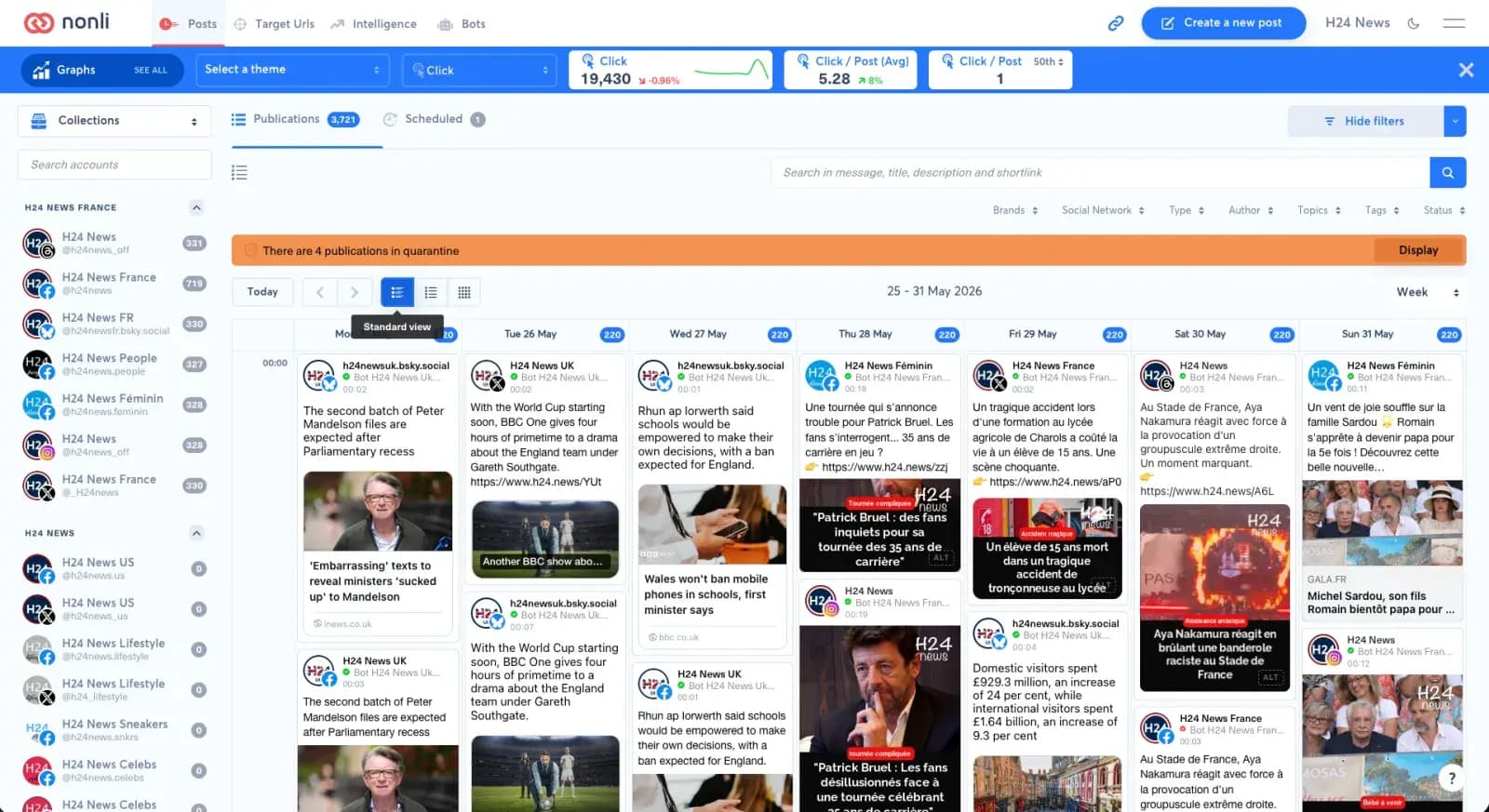
Standard view gives the most context for each publication.
4.2. Light view#
Light view keeps the essential information while reducing card height. Use it when the week contains many posts and you still want to scan times, accounts, and visuals quickly.
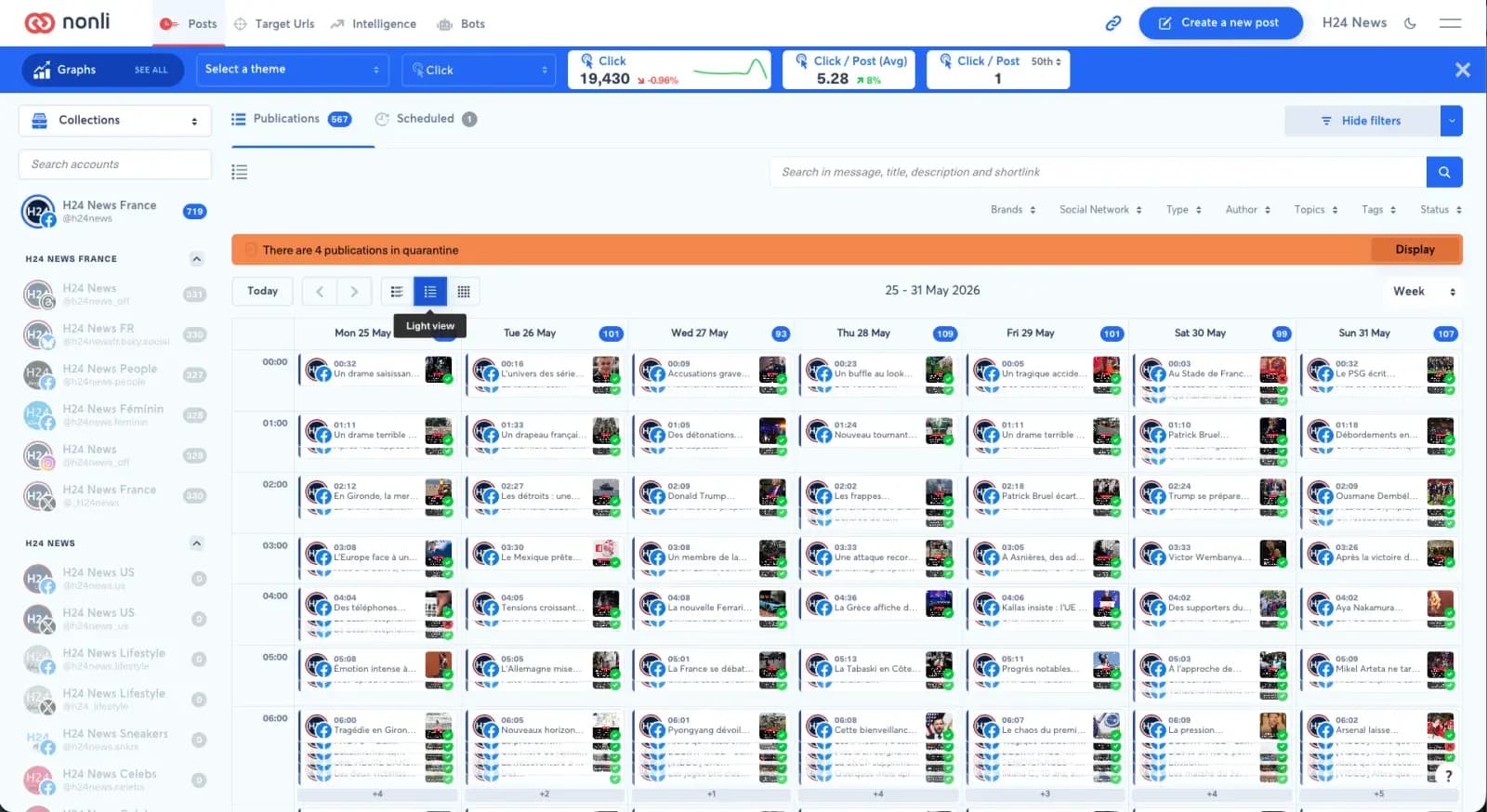
Light view is a balance between readability and density.
4.3. Compact view#
Compact view replaces cards with counters by social network and time slot. It is best for analyzing publication volume and spotting peaks.
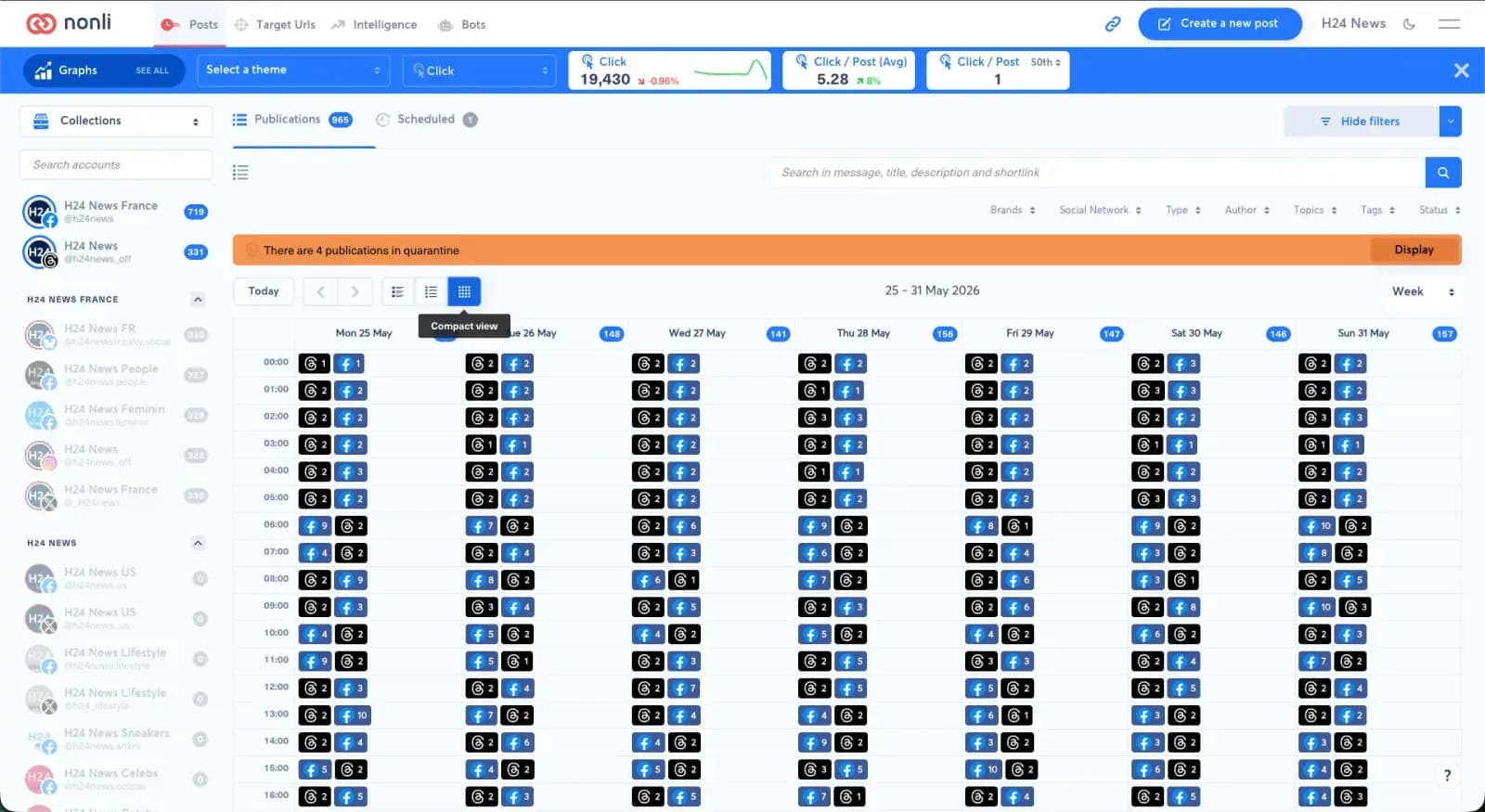
Compact view focuses on volume rather than detailed content.
5. Use filters with the calendar#
Publication filters remain available in the calendar view. You can filter by brand, social network, type, author, topic, tag, status, or social account, then review the result directly in the calendar.
The search bar also helps you find a publication from message text, title, description, or shortlink. If a quarantine message is displayed, click Display to review the affected publications.
6. Best practices#
- Use Month at the beginning of the week to check the overall schedule balance.
- Switch to Week to verify publication times and avoid overloaded slots.
- Choose Compact view to quickly spot peaks by social network.
- Return to Standard view before approval if you need to reread messages and check visuals.