A hot content bot distributes articles that are still recent but do not require the cadence of a breaking-news alert. It relies on two things: a theme that only returns fresh articles, and a bot that consults this theme at a steady pace.
The video below shows the complete setup in about two minutes. The rest of this article explains each parameter, in the order of the screens.
1. Create the theme#
In Intelligence, open the theme list and select Create a theme. The new theme starts as a copy of the theme currently displayed.
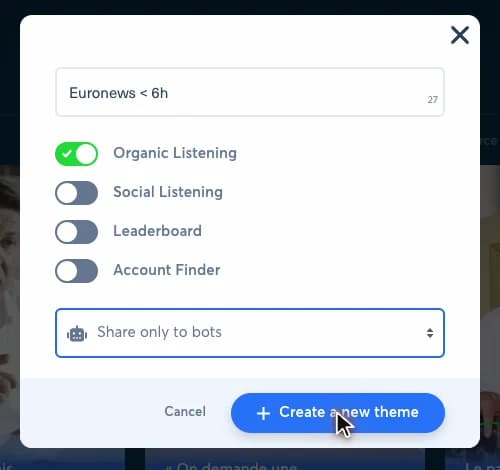
| Field | Value in the video | What it does |
|---|---|---|
| Name | Euronews < 6h | Name shown in the theme list and in the bot form. Put the source and the freshness window in it: the bot form displays the name, not the filters. |
| Organic Listening | On | Section listing the articles of your sites. This is the only section a hot content bot needs. |
| Social Listening | Off | Section listing social posts. Turn it off when the theme is only used to republish your articles. |
| Leaderboard | Off | Account ranking section. Not used by the bot. |
| Account Finder | Off | Account search section. Not used by the bot. |
| Visibility (unlabeled menu) | Share only to bots | Who can use the theme. A Private theme does not appear in the bot form. Choose Share only to bots, or Share with users in my company and bots when your colleagues also need it. |
Turning off the unused sections keeps the theme readable and avoids selecting the wrong section later in the bot form. If your theme is missing from the bot form, see Why can't I select my own themes?.
2. Keep only fresh articles#
The theme opens on its Organic Listening section. Set its filters, then select Save filters.
| Filter | Value in the video | What it does |
|---|---|---|
| Source | www.euronews.com | Site whose articles feed the bot. Select the site, or the sites, of the brand the bot publishes for. |
| Publication | Published in the last 6 hours | Freshness window. An article older than this leaves the theme and can no longer be picked by the bot. Widen it to 12 or 24 hours when your volume is low. |
| Sort by | Views, descending | Order of the results. The most viewed fresh articles come first. Choose the publication time instead when freshness matters more than performance. |
Exclude the tag reserved for breaking news, for example with NOT tag:"breaking news", so the same article cannot be selected by both bots. For more precise filters, see How do I create a Boolean query?.
Review about ten results before going further. Every result should be safe to republish without correction.
3. Create the bot from the theme#
In Bots, select Create a bot, then make two choices:
- From a theme: the bot picks its articles in a theme. The other choice, Republish posts, reposts existing posts according to performance criteria.
- Publish on your social accounts: the bot creates posts on your accounts. The other choices send emails or publish on Slack.
The configuration form opens. It is long: the sections below follow it from top to bottom.
4. Source and destination#
| Field | Value in the video | What it does |
|---|---|---|
| Name | Euronews - Hot content | Name of the bot in the list. Up to 40 characters. |
| Brand | H24 News | Brand the bot publishes for. It determines the available social accounts, message templates and Smart Image templates. |
| Theme | Euronews < 6h | Theme the bot consults. Type its name in the search field. Only themes shared with bots are listed. |
| Theme section | Organic Listening | Section of the theme the bot reads. When several sections are enabled in the theme, check this field: the form may preselect Social Listening. |
| Destination social accounts | Six Facebook Pages | Accounts that receive the posts. Select only the accounts concerned; a selected account has a green ring. |
5. Schedule and pace#
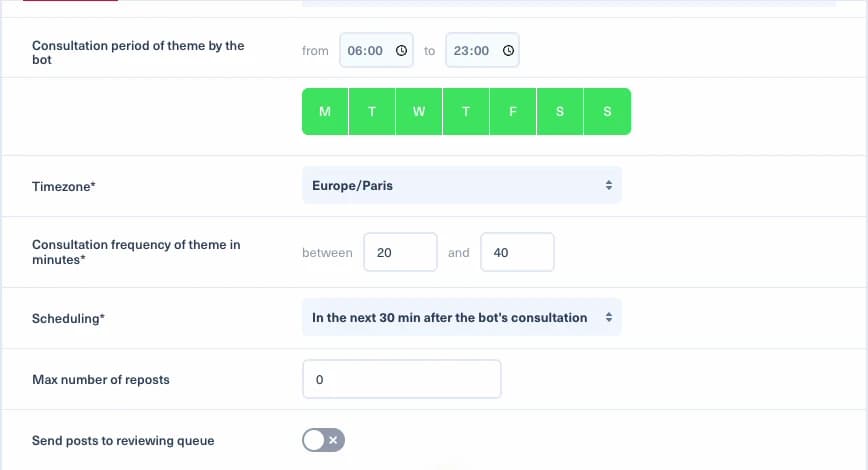
| Field | Value in the video | What it does |
|---|---|---|
| Consultation period of theme by the bot | 06:00 to 23:00 | Hours during which the bot works. Outside this period it does not consult the theme. See What is the consultation period?. |
| Days | Every day | Days on which the bot works. An active day is green. |
| Timezone | Europe/Paris | Timezone of the consultation period. Use the timezone of your newsroom. See Which timezone does the consultation period use?. |
| Consultation frequency of theme in minutes | Between 20 and 40 | Time between one consultation of the theme and the next. It varies between the two values, so the bot does not run at fixed intervals. See What is the consultation frequency?. |
| Scheduling | In the next 30 min after the bot's consultation | When the post goes out after a consultation. See smart scheduling below. |
These values are starting points. Shorten the frequency when the theme contains many priority articles, and lengthen it when the destination accounts are already busy.
5.1. Why choose smart scheduling?#
With At once after the bot's consultation, the post is published immediately, whatever else is planned on the account.
With In the next 30 min after the bot's consultation, Nonli chooses the moment within the following 30 minutes. This lets Nonli avoid collisions when a user publishes a post directly in Nonli or outside Nonli. Posts that do not collide get more engagement.
The menu offers windows from 5 minutes to several hours. For hot content, 30 minutes keeps the article fresh while leaving Nonli enough room to place the post.
6. Repost and review#
| Field | Value in the video | What it does |
|---|---|---|
| Max number of reposts | 0 | Number of times the same article can be published again. Keep 0 so that each article goes out only once. |
| Send posts to reviewing queue | Off | When on, the bot proposes its posts for review instead of publishing them. Turn it on for the first days, as explained in step 11. |
7. Content sources#
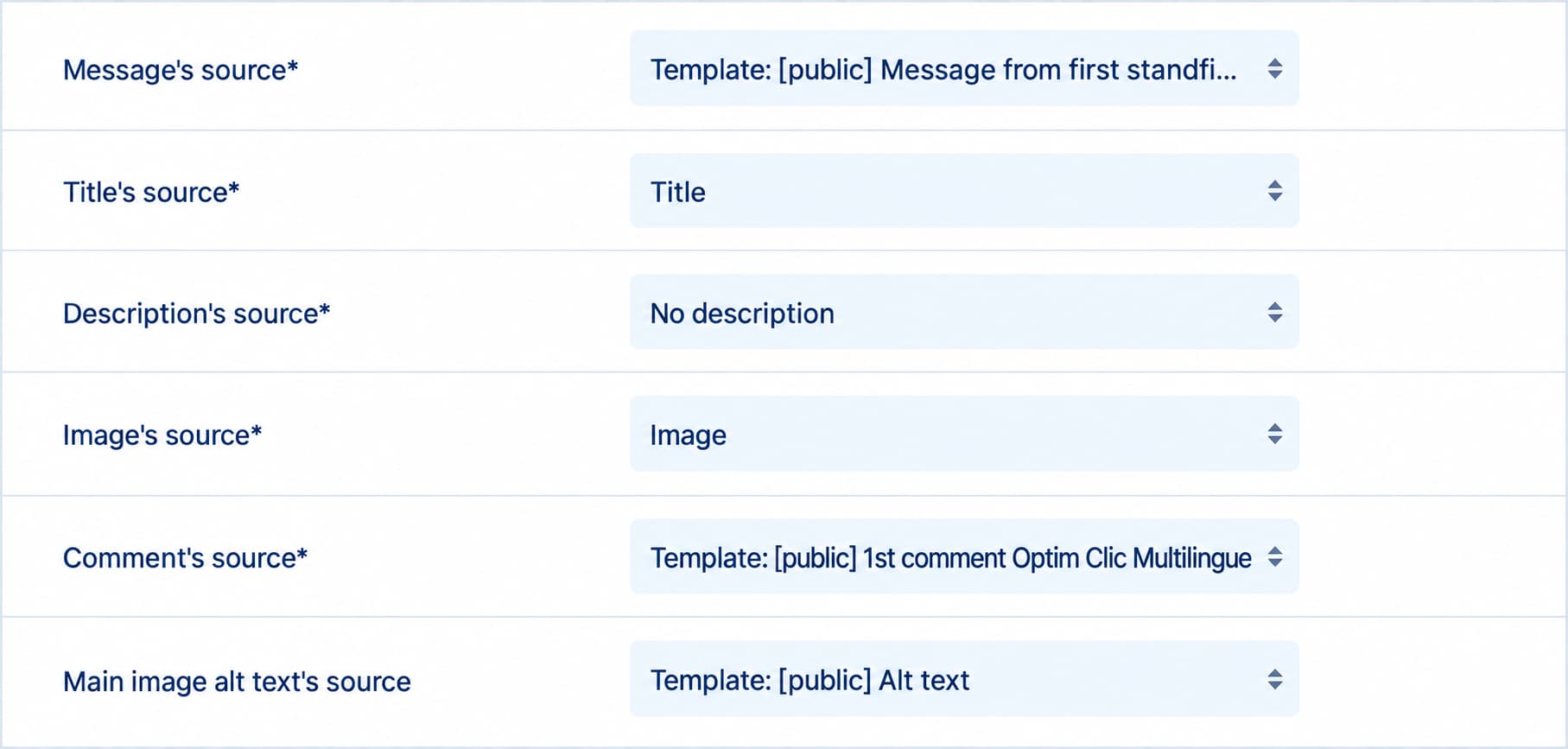
| Field | Value in the video | What it does |
|---|---|---|
| Message's source | Template: [public] Message from first standfirst sentence | Text of the post. This template starts the post with the first sentence of the article's standfirst. |
| Title's source | Title | Title of the post, taken from the article title. |
| Description's source | No description | Description of the post. Left empty here. |
| Image's source | Image | Image of the post: the article's main image. |
| Comment's source | Template: [public] 1st comment Optim Clic Multilingue | First comment under the post. This template uses the same shortlink rule across languages and adapts the Instagram link-in-bio prompt to the article language. |
| Main image alt text's source | Template: [public] Alt text | Alternative text of the main image, which screen readers read aloud. This template generates it; with None, the bot generates none. |
| Send Story on Facebook and Instagram accounts | Off | Also sends the content as a Story on the selected Facebook and Instagram accounts. |
The form shortens the message template name in the dropdown. Its full name is Template: [public] Message from first standfirst sentence. The list is long: scroll down to the Template: [public] entries.
The message template must have a usable standfirst to draw from. Review a few previews and adapt the source if your articles do not have one.
To post the full collected description instead of its first sentence, set Message's source to Description. First check that the collected description is your complete standfirst, then check the network text limits and where the link appears: see Full collected description or first standfirst sentence.
7.1. Where does the shortlink appear?#
The two templates coordinate link placement. Nonli replaces the [SHORTLINK] marker with the article's shortened URL when the post is published:
- Shortlink in the first comment: on an eligible Facebook or LinkedIn photo post with an article link,
1st comment Optim Clic Multilinguemay put[SHORTLINK]in the comment. The message template detects it withhasFirstCommentShortlink()and does not repeat the URL in the main post. - No shortlink in the first comment: when the post has a link and nonempty opening text, and its format and network allow a URL in the message,
Message from first standfirst sentenceadds the shortlink after that text. The URL appears only once. - Native link post or article without a URL: a link post uses its native link; without an associated URL, neither template adds
[SHORTLINK]. On Instagram, the comment template points readers to the link in bio in the article language when available, with English as a fallback.
Optim Clic Multilingue does not place a shortlink in the first comment on every post. For eligible photo posts, it uses shouldAddComment('click'), a click-oriented comment sampling rule, to decide whether the link goes in the comment. Check previews with and without a comment, then compare clicks measured in Nonli; this setting does not guarantee more clicks. For more detail, see how Smart Messages work and how first comments are published.
8. Limits and filters#
These fields are empty in the video. Fill them in according to your accounts.
| Field | What it does |
|---|---|
| Maximum number of posts per day | Daily ceiling for the whole bot. It prevents an editorial spike from filling the entire social calendar. |
| Maximum number of posts per account per day | Daily ceiling for each destination account. |
| Exclude content that contains these terms | Articles containing one of these terms are ignored. Use it for sensitive topics, finished live coverage or incompatible formats. See How to exclude terms on all the bots of a brand. |
| Include only content that contains these terms | Only articles containing one of these terms are kept. |
| Add a prefix to the message | Text added before every message. |
| Add a suffix to the message | Text added after every message. See How to configure prefixes and suffixes. |
9. Post format#
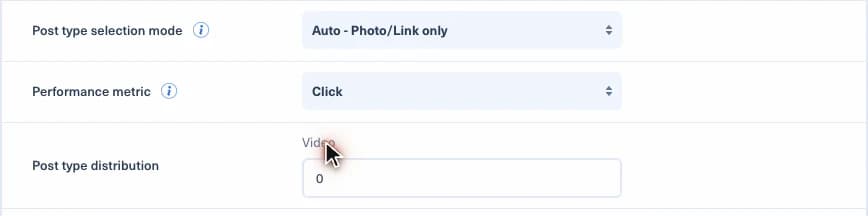
| Field | Value in the video | What it does |
|---|---|---|
| Post type selection mode | Auto - Photo/Link only | How the bot chooses the format of each post. Manual (use rates) applies the photo, video and link shares you enter. Auto - All types and Auto - Photo/Link only let Nonli choose. |
| Performance metric | Click | Metric the automatic mode optimizes. This field appears once an automatic mode is selected. |
| Post type distribution | Video 0 | In manual mode, the share of photo and video posts; the link share is calculated from the other two. In Auto - Photo/Link only, only the video share remains. |
| Automatically generate hashtags using keywords detected by Nonli | Off | Adds hashtags built from the keywords Nonli detects in the article. |
| Max number of hashtags to add | Empty | Ceiling on the number of hashtags added. |
| Hashtags to use, if the max number is not reached | Empty | Hashtags added to complete the list. |
With Auto - Photo/Link only and the Click metric, the bot chooses between photo and link posts, favoring the format that performs better on clicks. This is an automatic choice rather than a fixed photo/link ratio; it does not guarantee more clicks for every post.
This setting chooses the post format. Optim Clic Multilingue separately decides whether an eligible photo post puts its shortlink in the first comment.
10. Safeguards, URLs and Smart Image#
| Field | Value in the video | What it does |
|---|---|---|
| PublishGuard | On | Checks each post against the brand rules before publication. See How to configure and test Publish Guard. |
| Remove URL anchors | Off | Removes the #fragment part of the article URL. See What is the Remove URL anchors function?. |
| Remove URL parameters | Off | Removes the query parameters of the article URL. |
| Force use canonical URL | On | Uses the canonical URL declared by the article. See How to force the use of the non-canonical URL. |
| Enable smart image generator for link posts | Off | Generates the image of link posts with a Smart Image template. |
| Enable smart image generator for photo posts | On, template H24 - Demo | Generates the image of photo posts with a Smart Image template. This toggle appears with Auto - Photo/Link only. |
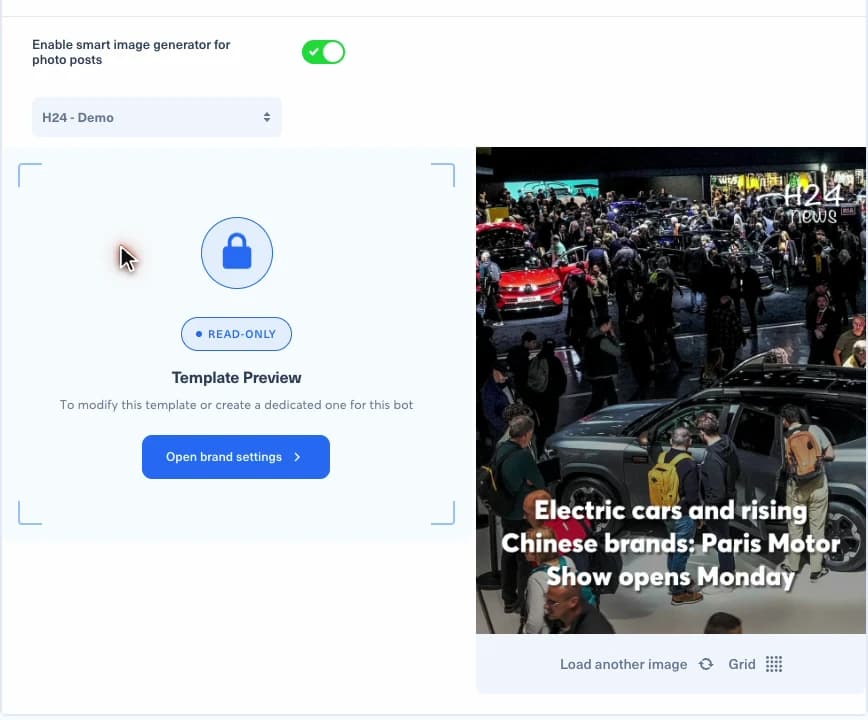
When the Smart Image generator is on, choose a template in the list. Shared templates are prefixed with [shared] there. The preview on the right applies it to a recent article; Load another image tests it on another one. The template is read-only in the bot form: to modify it, or to create one dedicated to this bot, use Open brand settings. See the Smart Image Generator user guide.
11. Save, test, then activate#
Select Save. The bot appears in the list and is not activated: nothing is published until you turn it on. See How can I activate a robot?.
- Turn on Send posts to reviewing queue and keep it on for at least one complete editorial cycle.
- Check freshness, image, copy, link, destination account, duplicates, and that each run proposes no more than one article. If it proposes more, keep the review queue active and adjust the bot before enabling automatic publishing.
- Compare the number of eligible articles with the selected daily limit.
- Switch to automatic publishing only when results are stable.
- After a few days, adjust the freshness window and the frequency using the actual published volume.
If an expected article is not published, follow Why did my bot not publish this article?.